I’m a lawyer. I built my own AI tools. Now they read European patents, too.
This is Part 2 of a mini-series on New and Useful: “I’m a lawyer. I built my own AI tools.”
Last month, I walked through building an MCP server that gives Claude, ChatGPT, or any agentic AI MCP tooling direct access to USPTO file wrapper data.
It has been far and away my most popular article so far, and it’s clear lawyers are looking for more content on how to leverage AI tools to improve their work. The response has been great, but I received one question several times: can this work for the EPO?
Many U.S. practitioners inevitably touch EPO practice, and it can be helpful to coordinate among members of the same patent family. So I built the European version.
It took an afternoon, and unlike last time I’ll skip the click-by-click walkthrough. If you’d like to build it yourself, head over to my USPTO MCP build article for background. The build steps are very similar, with modifications tailored to authentication using the EPO’s Open Patent Services API. This is nothing Claude cannot handle.
If you built it, please let me know; I would be delighted to hear about it. We need more folks playing in this space. Seriously, drop me a note.
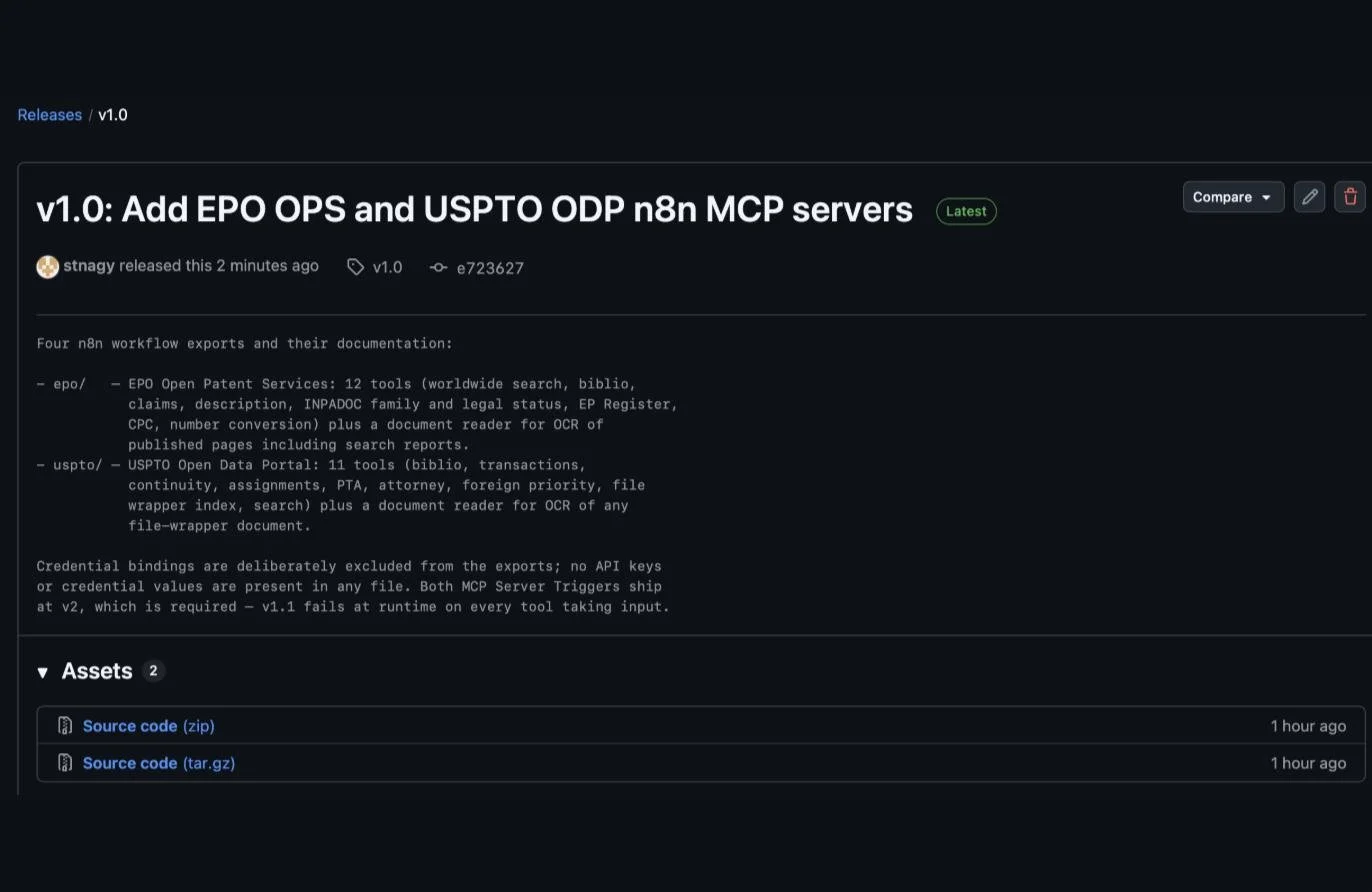
Otherwise, I’ve put the design for both the USPTO and EPO servers in a GitHub repo you can download directly:
→ github.com/stnagy/patent-mcp-servers/releases/tag/v1.0
Download the “source code” zip file under “Assets.”
Let me explain how to install them.
Installation
Prerequisites
An account on n8n.io. Free to try.
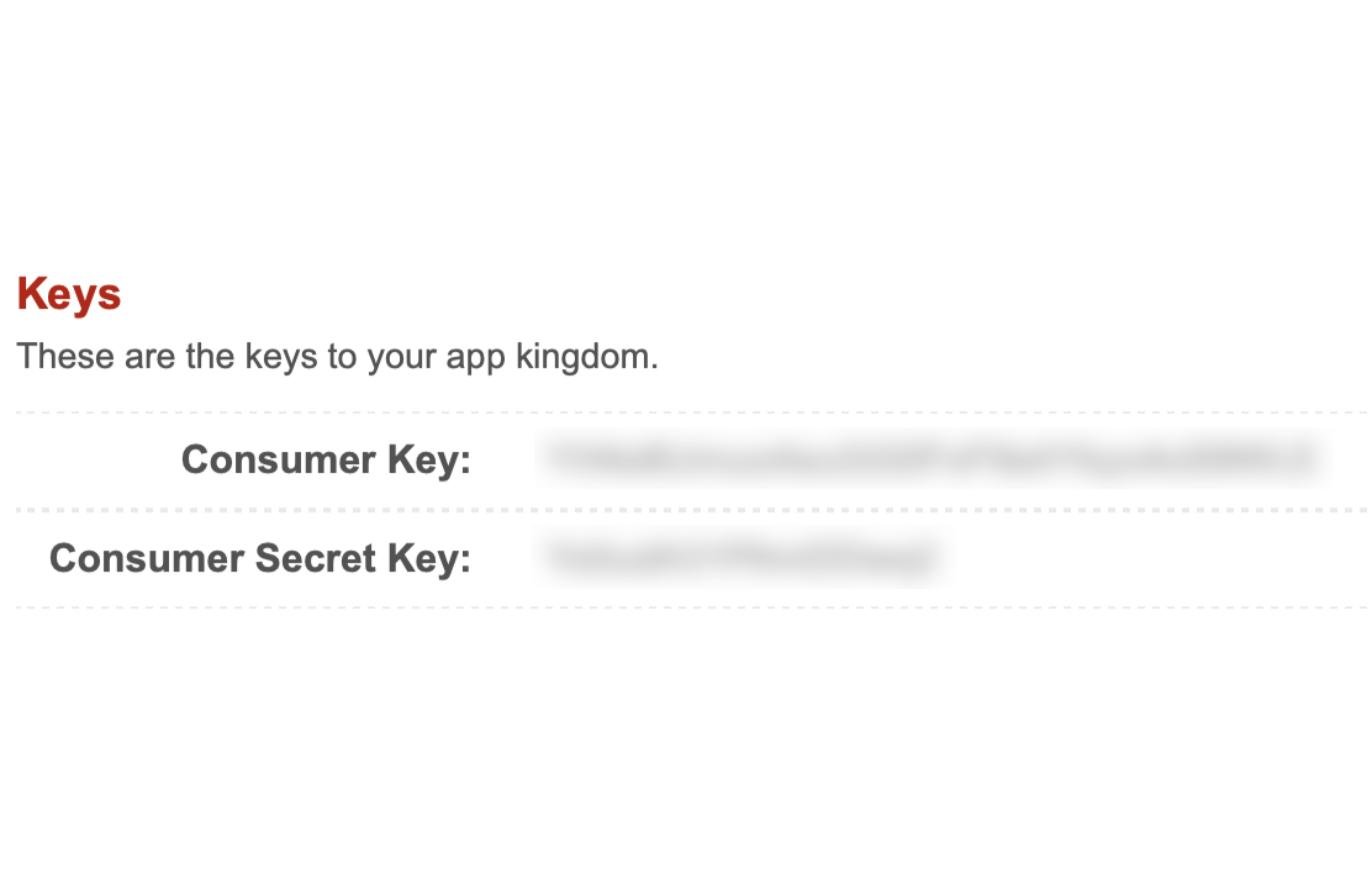
EPO OPS credentials: Free. Register an app at developers.epo.org to obtain a Consumer Key + Consumer Secret Key.
Mistral API key: Paid, roughly $2 per 1,000 OCR pages. Only needed for the EPO Read Document tool. If you already implemented the USPTO tooling from my last post, the same credential will work here.
Setup
First, sign into your n8n account.
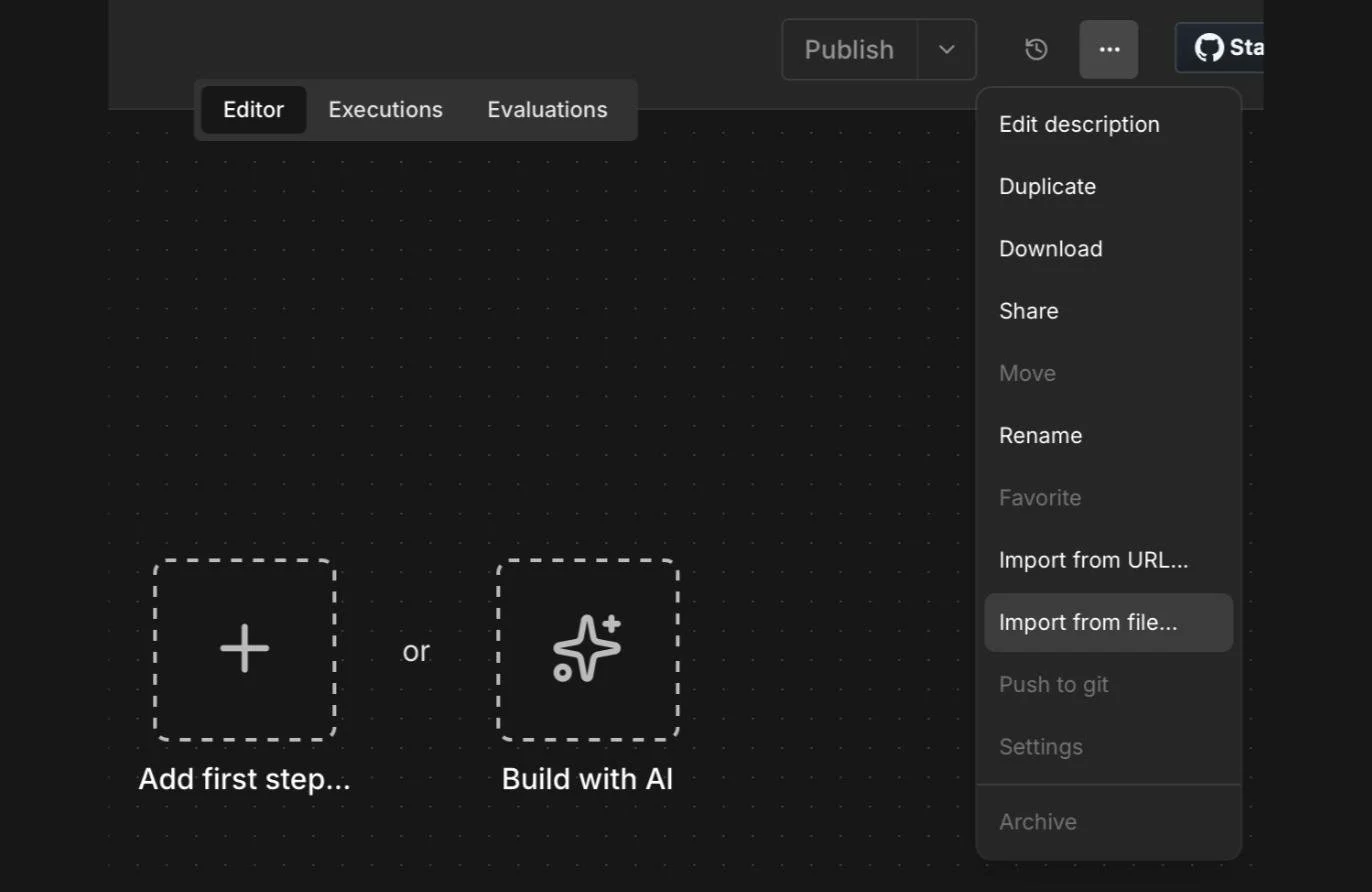
Create a new workflow, and import both workflow files ([ three dots ] → Import from file…). Order matters here: import “EPO_Document_Reader.json” first, then “EPO_OPS_MCP_Server.json”.
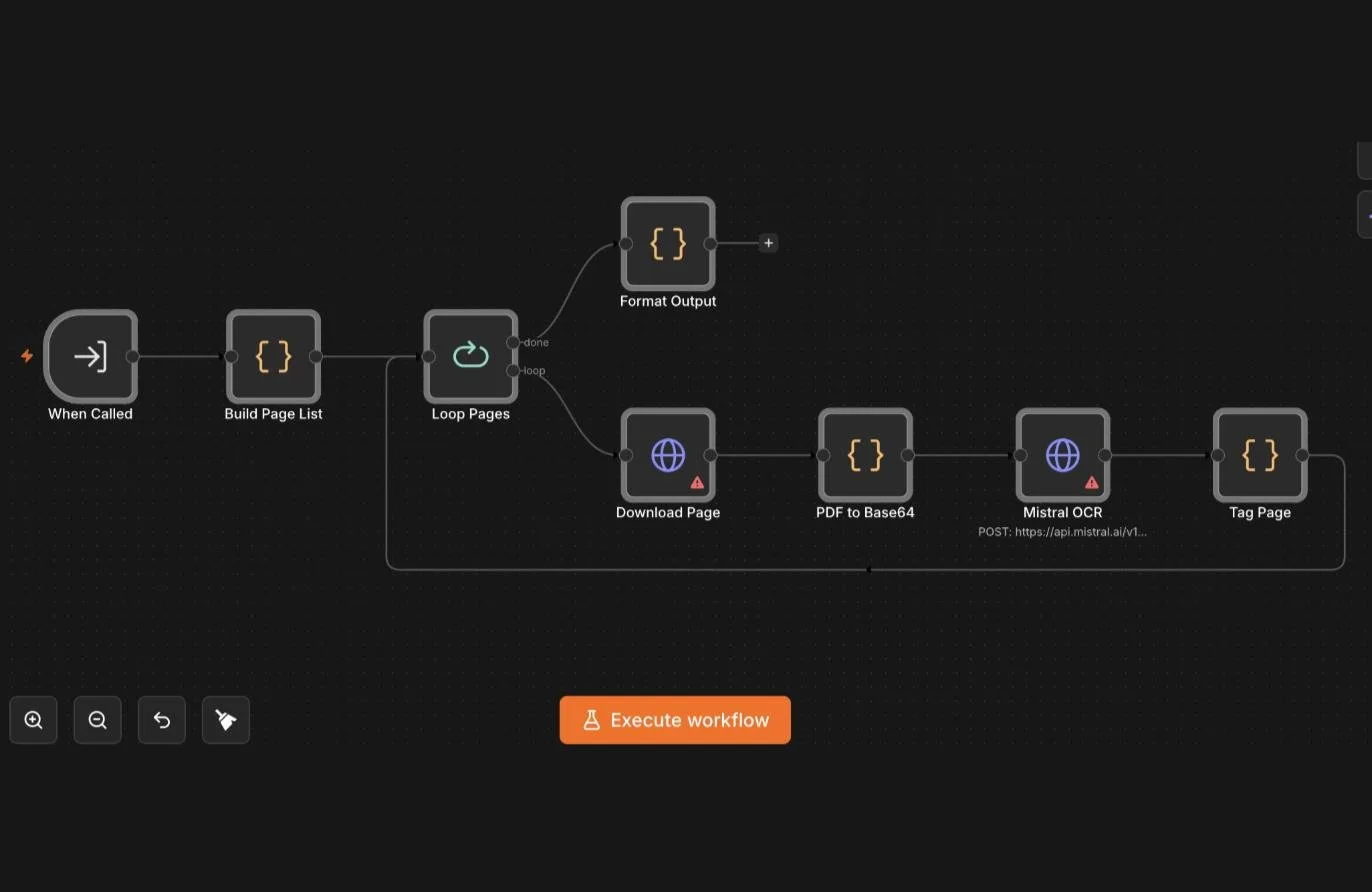
After importing, you should have two workflows that look like what’s shown below in the workflow editor. (Don’t worry about the node errors — red triangles — in some of the nodes yet. We will fix them soon!)
EPO Document Reader workflow:
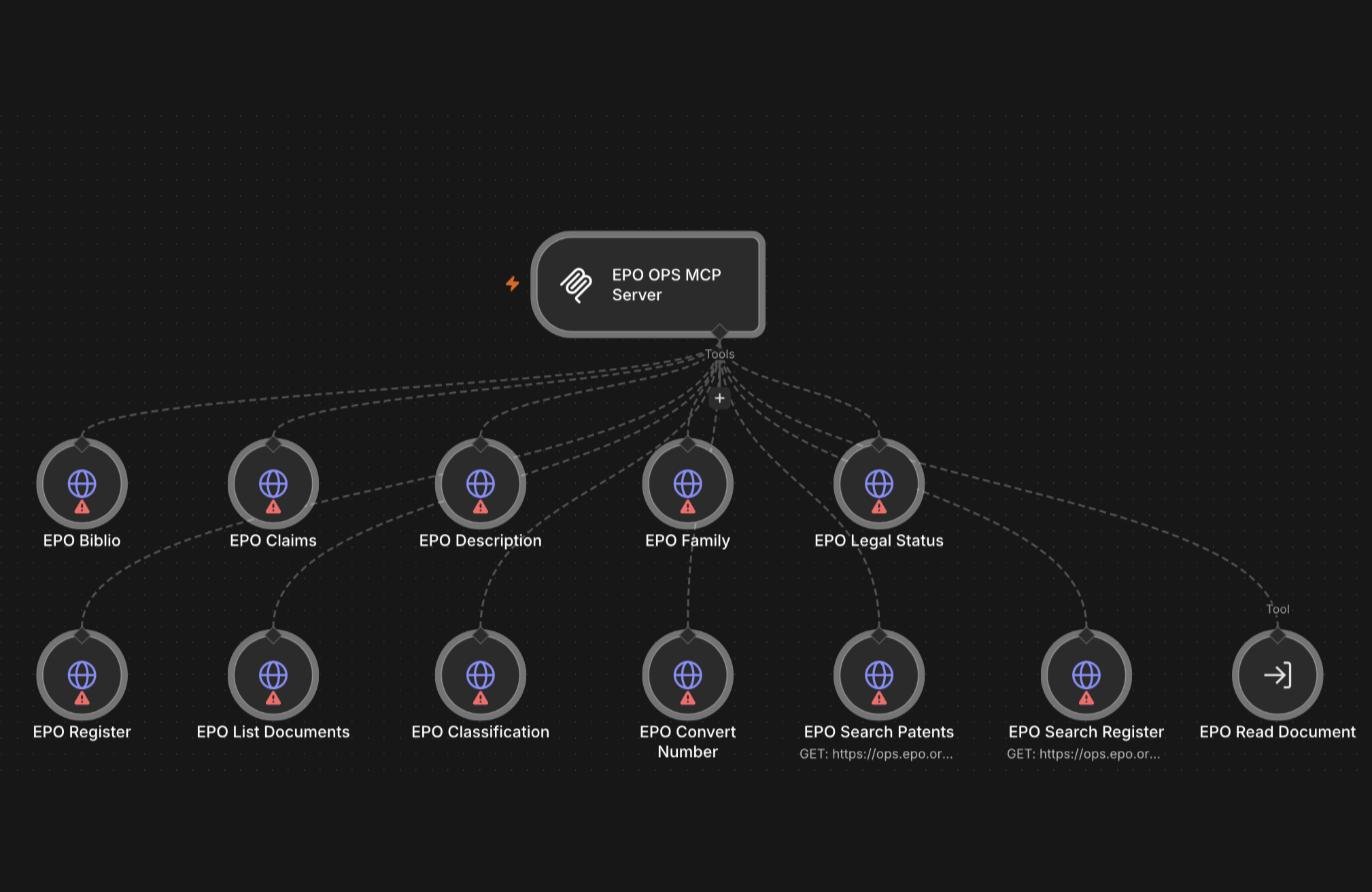
EPO OPS MCP workflow:
Add your OPS Credentials
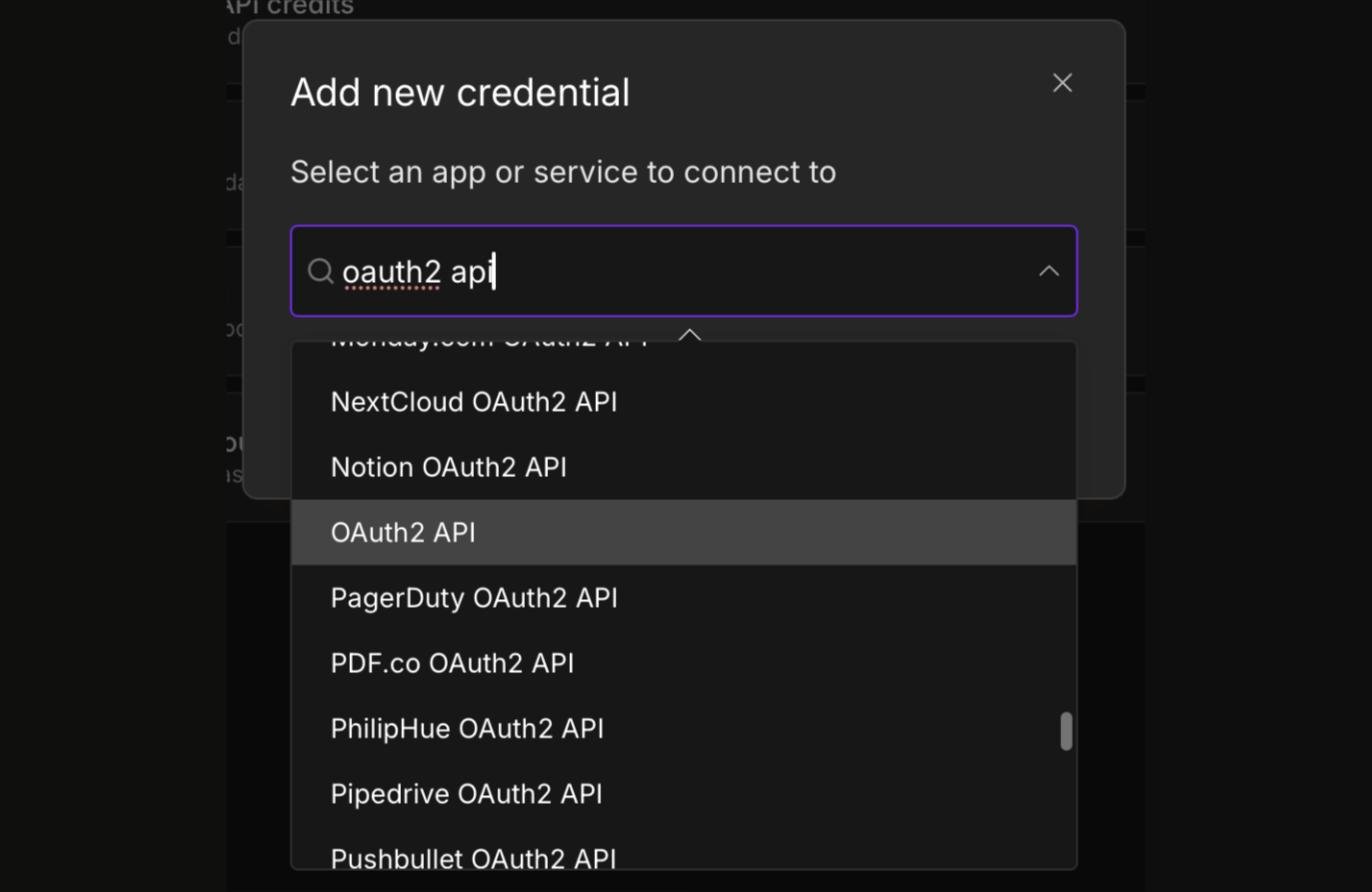
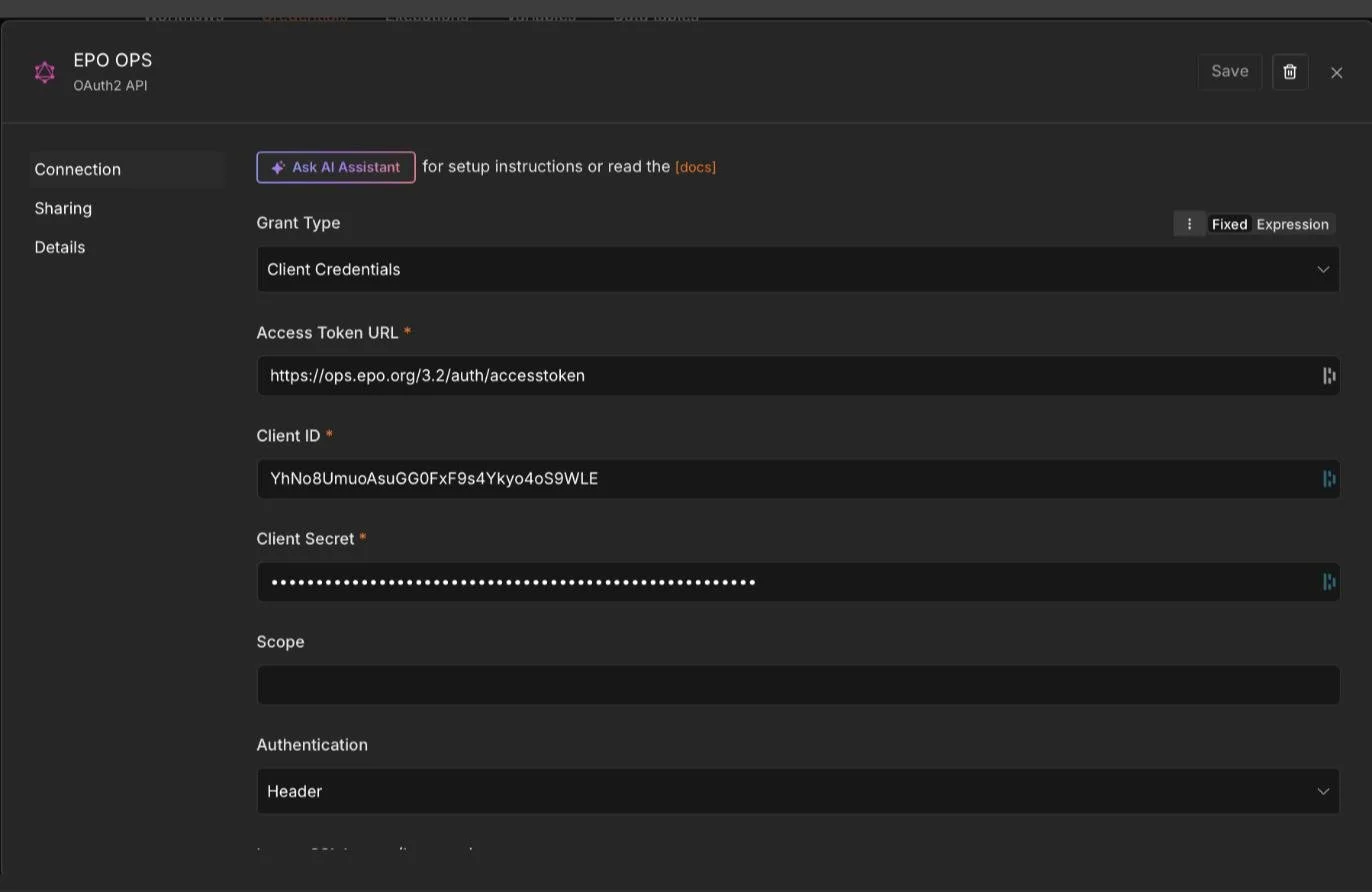
Credentials → Create credential → OAuth2 API (the generic one, you will need to scroll down quite a bit to reach it).
Name it “EPO OPS”.
Add the credentials you obtained from the EPO OPS system. The “Client ID” is your “Consumer Key”, and the “Client Secret” is your “Consumer Secret Key.”
Leave “Scope” empty.
Set Authentication to “Header”.
Change Token Expired Status Code to “400” (you need to scroll down).
You can leave the other settings on their default values.
Save it.
Your EPO OPS credential setting should now look like this:
Add your Mistral Credential
Sign up for a Mistral account here (note: Mistral OCR is a paid API, roughly $2 per 1,000 pages).
Click the “Create Credential” button and select “Mistral Cloud API.”
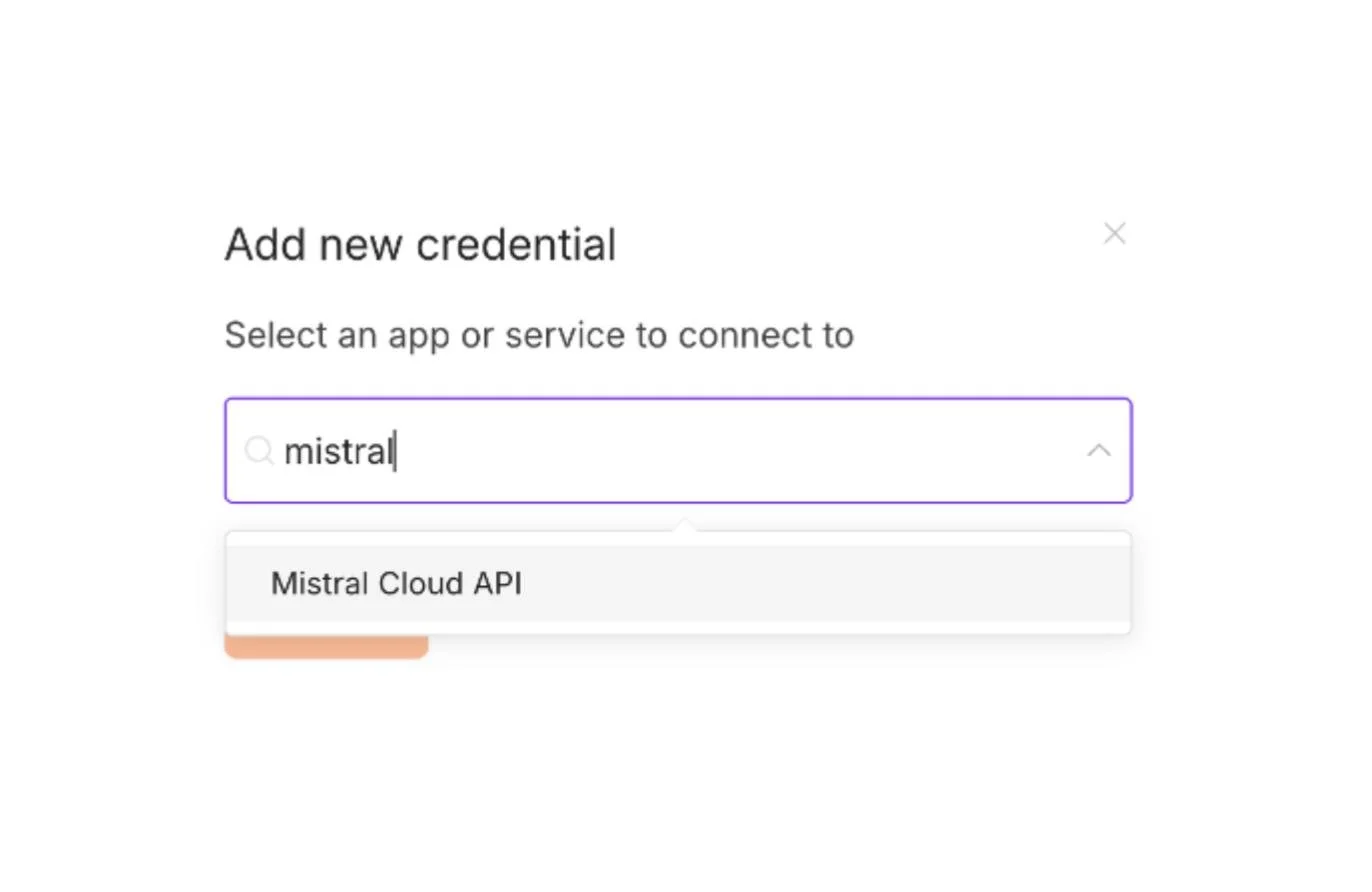
Enter your Mistral API key in the “API key” field and save.
Attach Credentials
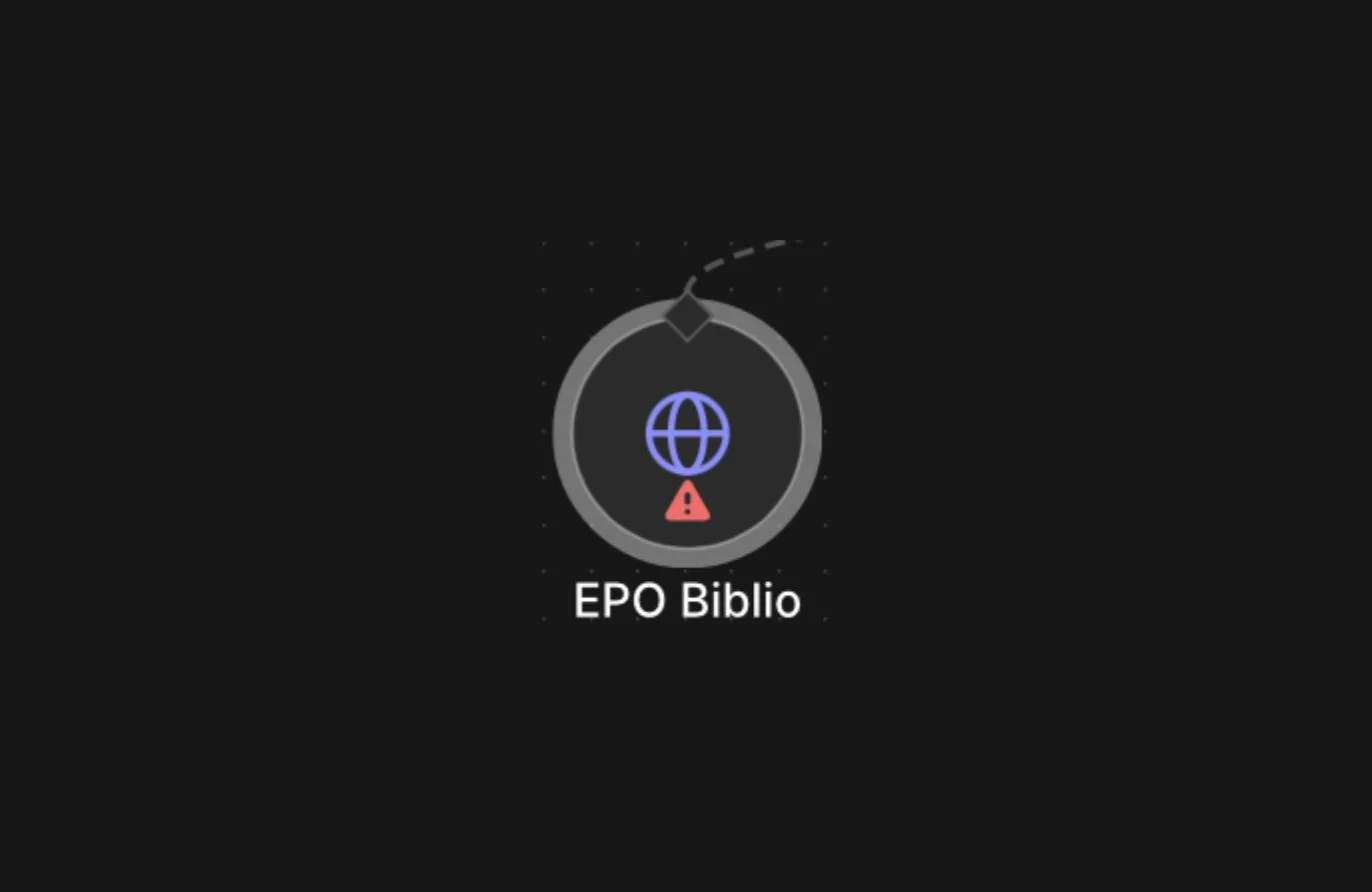
In the EPO OPS MCP Server workflow, attach the EPO OPS OAuth2 credential to all HTTP Request Tool nodes (they should all have red triangles).
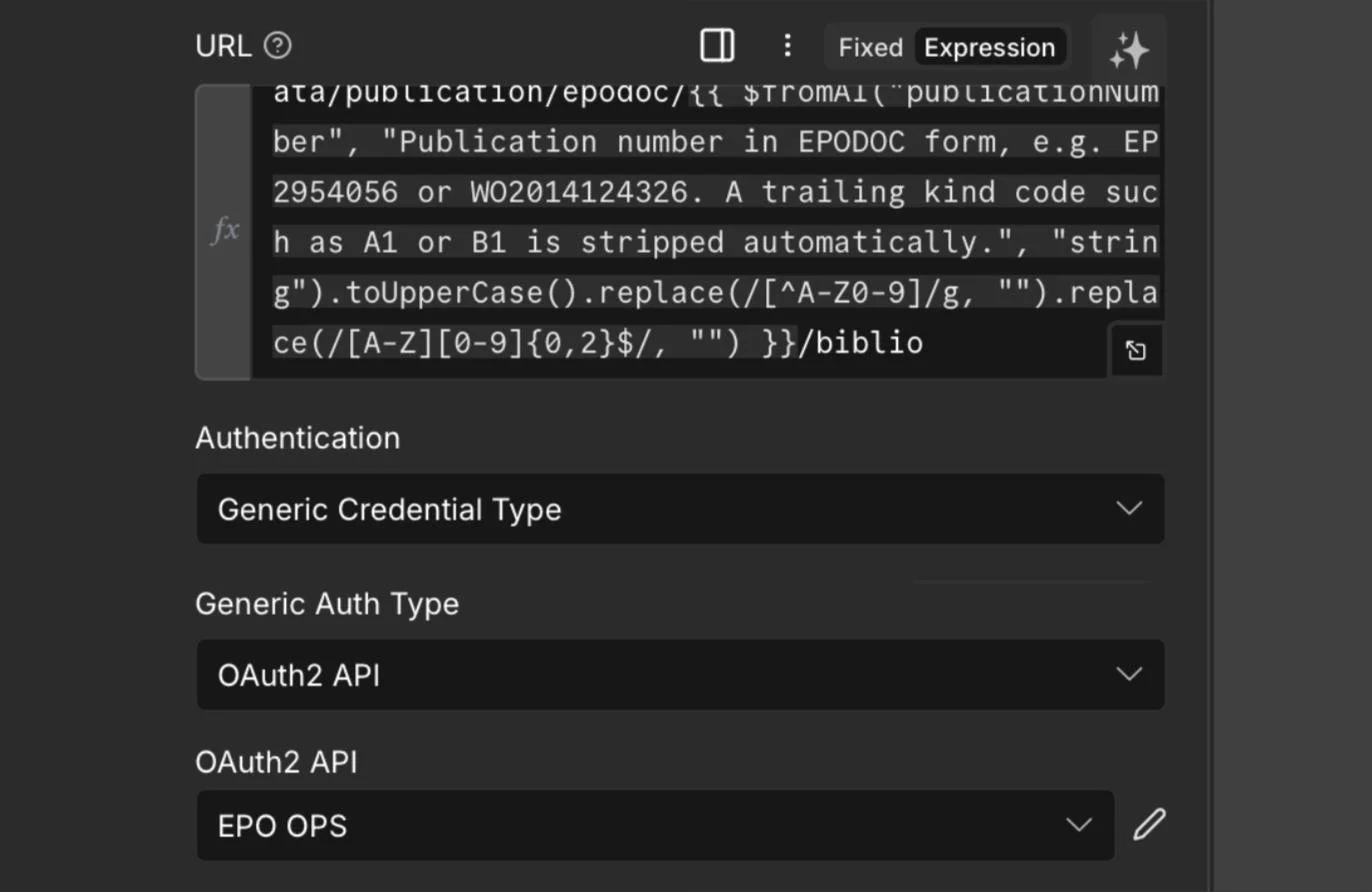
In the EPO Document Reader workflow, there are two nodes, two credentials:
Node “Download Page” → EPO OPS Credential
Node “Mistral OCR” → Mistral Credential
Connect the EPO workflows together
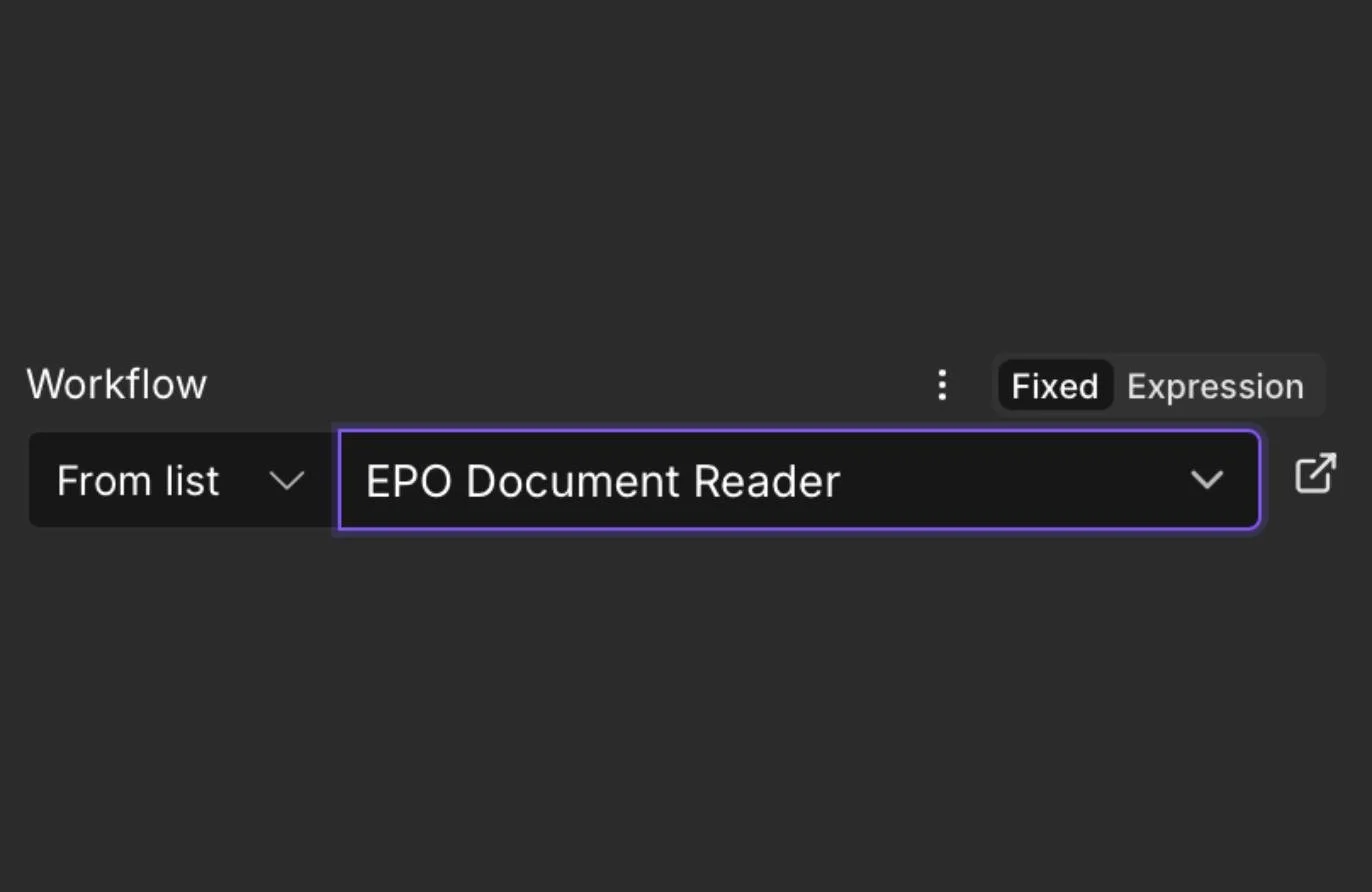
Open EPO OPS MCP Server → the EPO Read Document node. Its Workflow field reads REPLACE_WITH_YOUR_EPO_DOCUMENT_READER_ID. Select EPO Document Reader from the dropdown. Leave the three input mappings as they are.
Publish both workflows
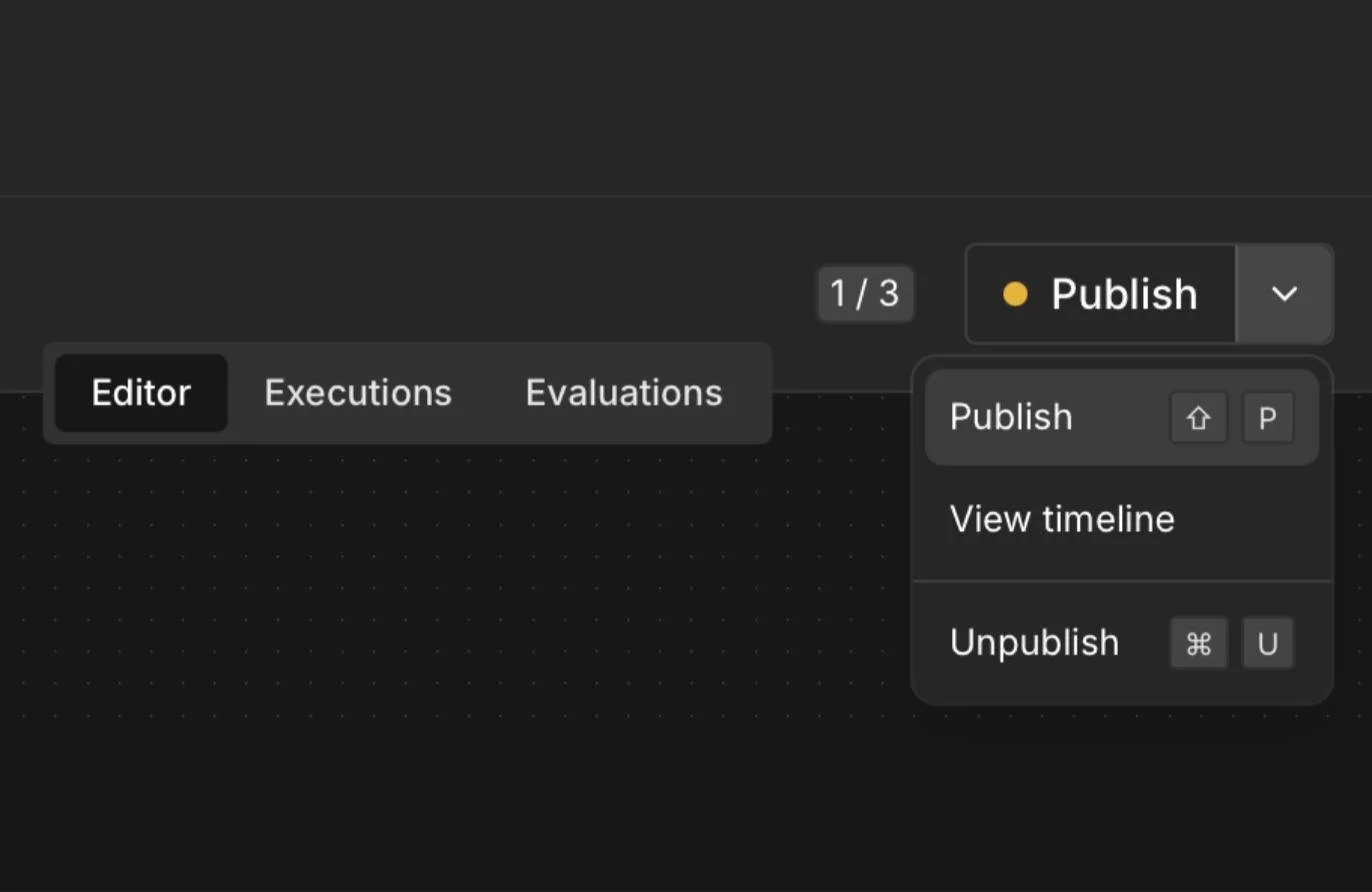
Click the “Publish” button in the Editor for both workflows.
Connect your MCP Client
I will demonstrate how to do it on the Claude web interface.
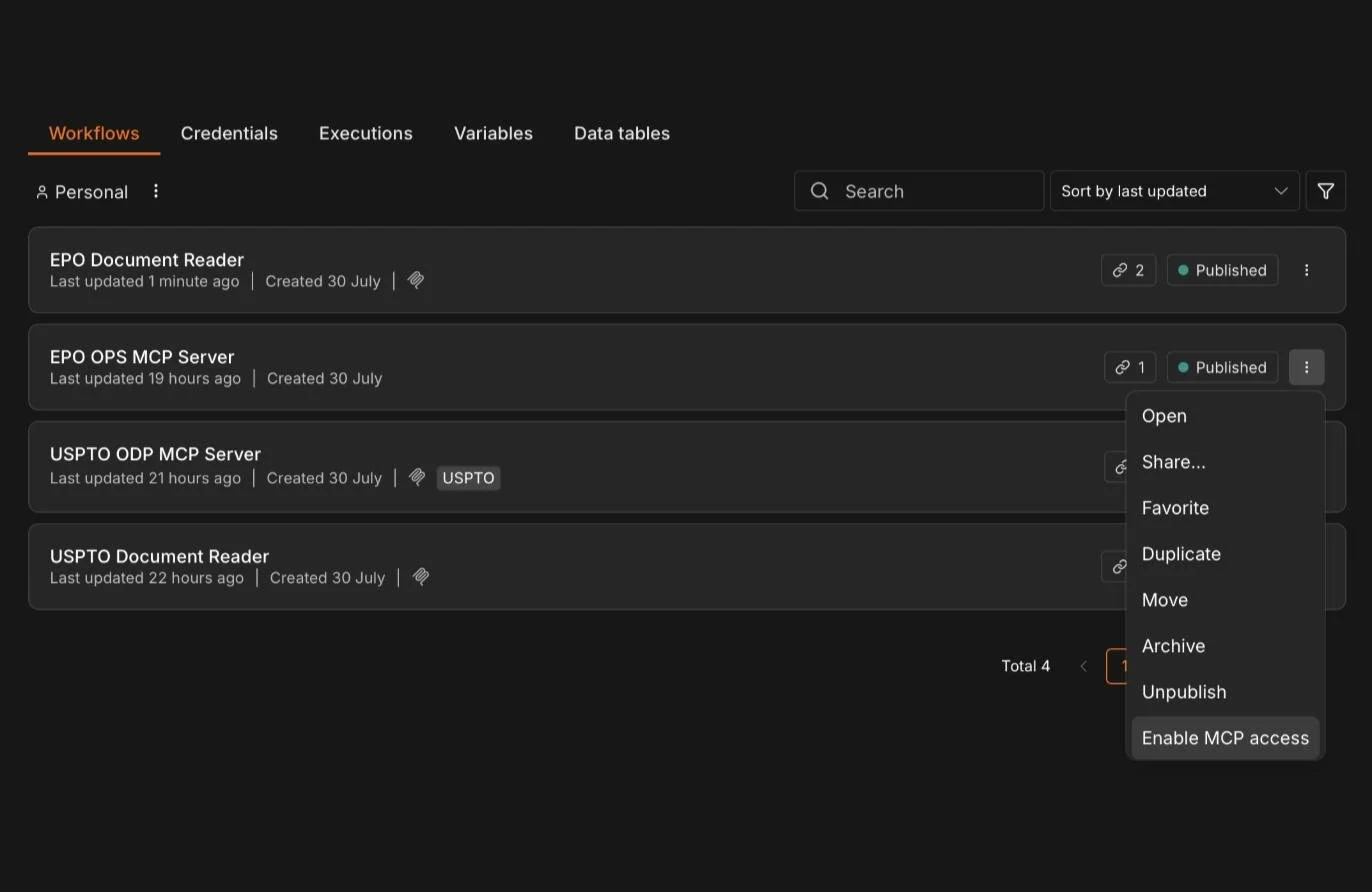
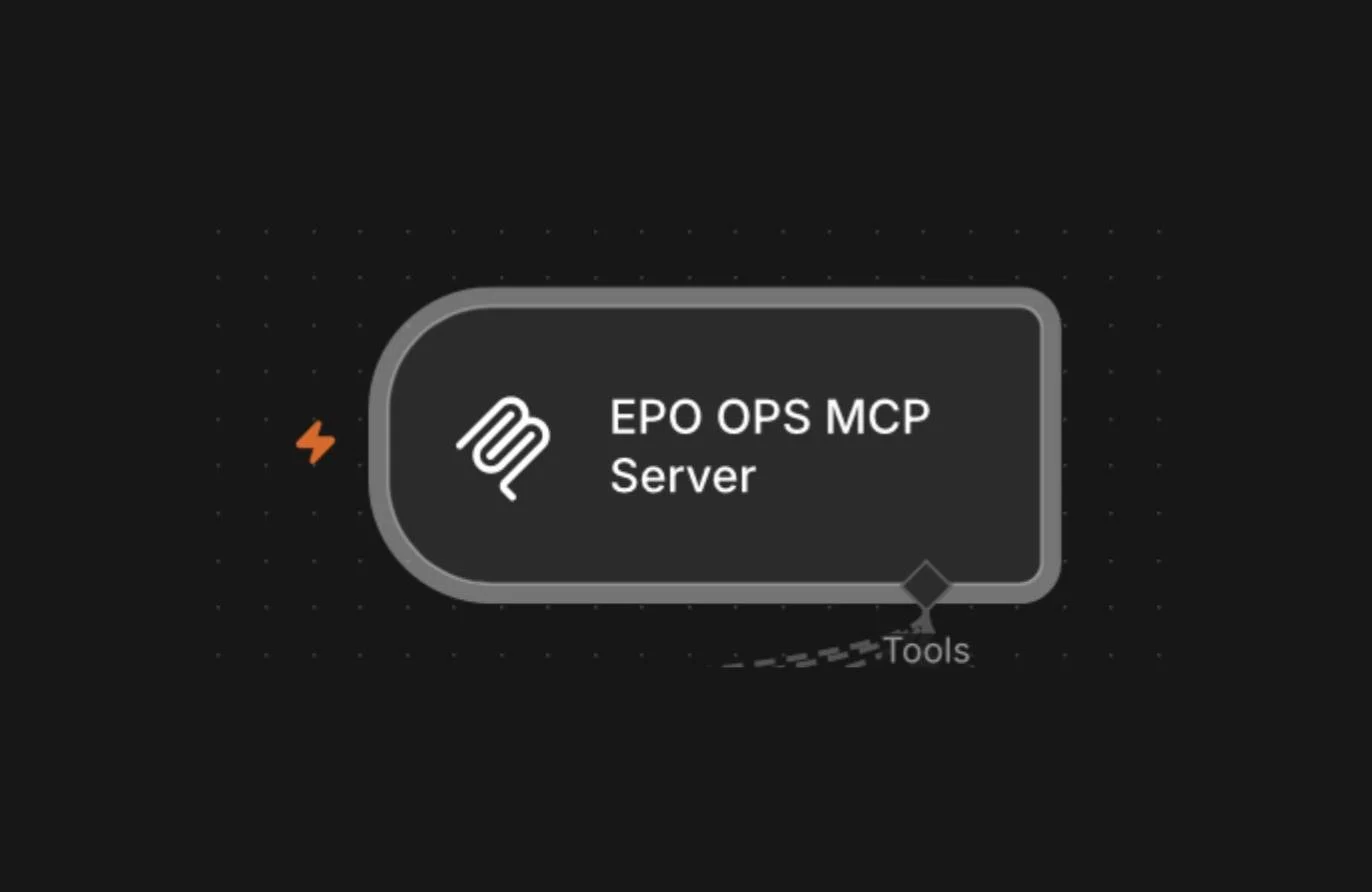
Ensure your workflows all have MCP access. They should have an MCP icon next to their names in the workflow dashboard. If they don’t, click the three vertical dots [⠇] and select “Enable MCP access.” (Note how EPO OPS MCP Server is missing the MCP logo — a squiggly line.)
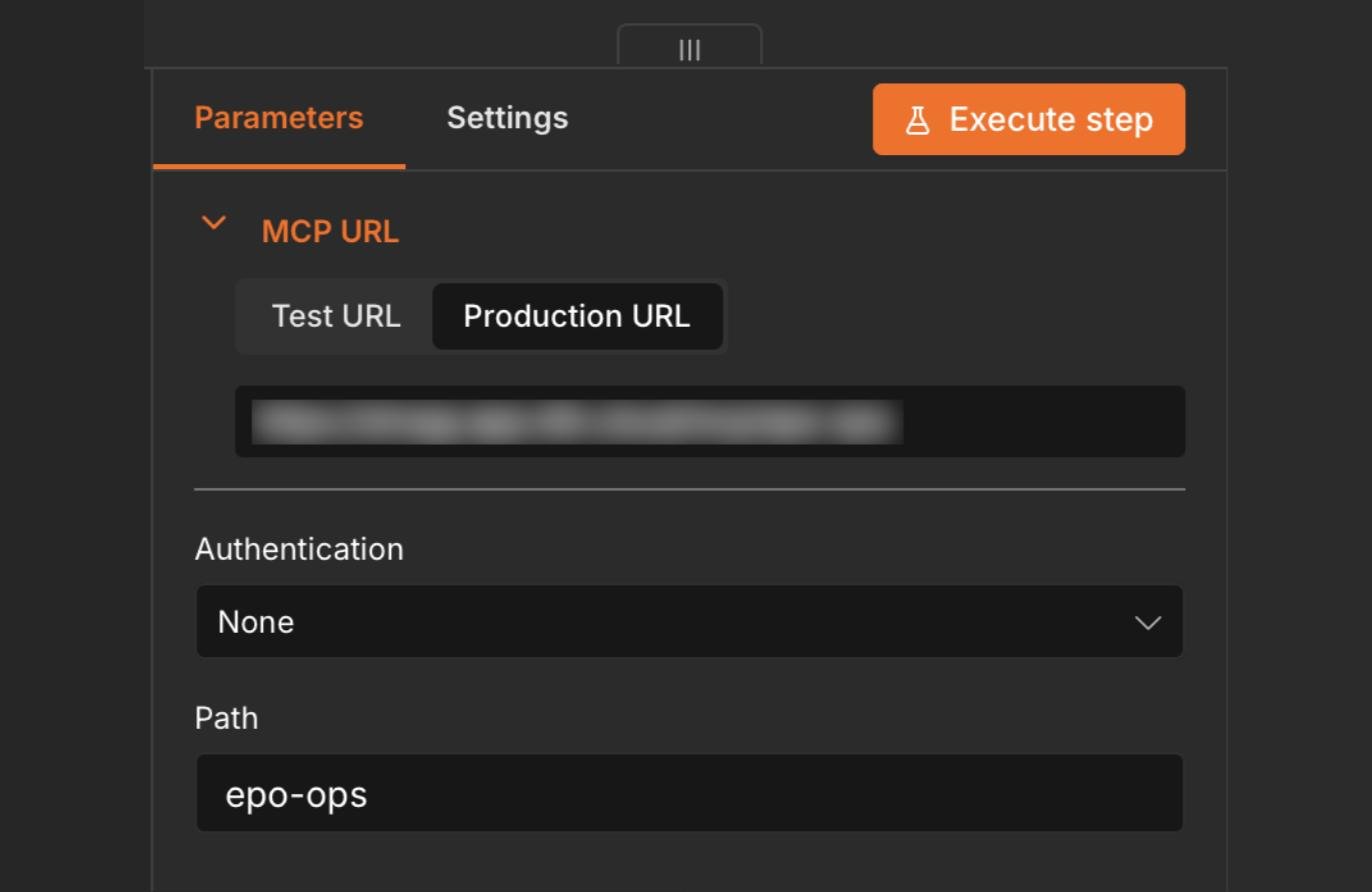
Open the EPO OPS MCP Server trigger node → Production URL → copy it (https://<your-instance>/mcp/epo-ops).
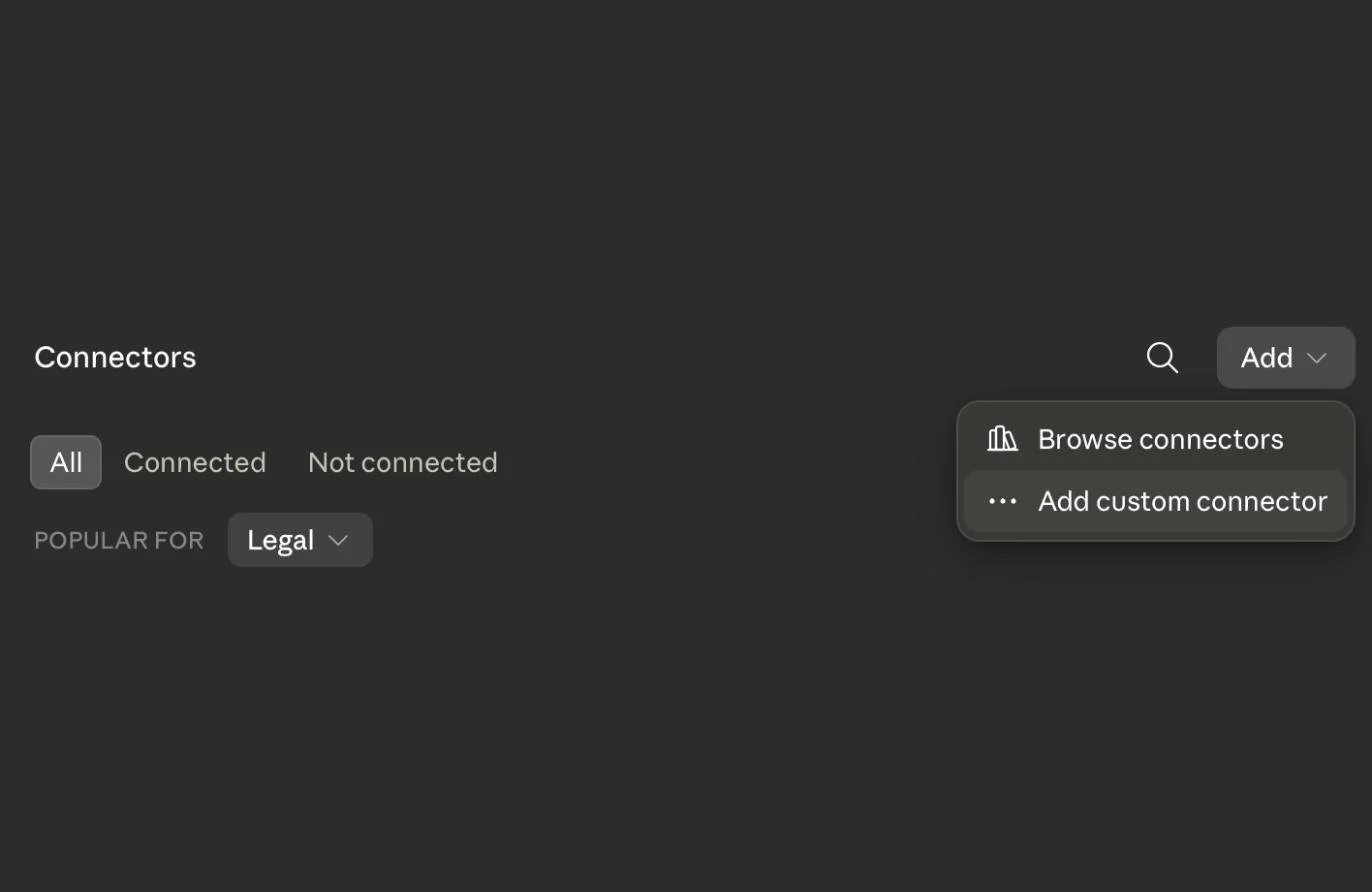
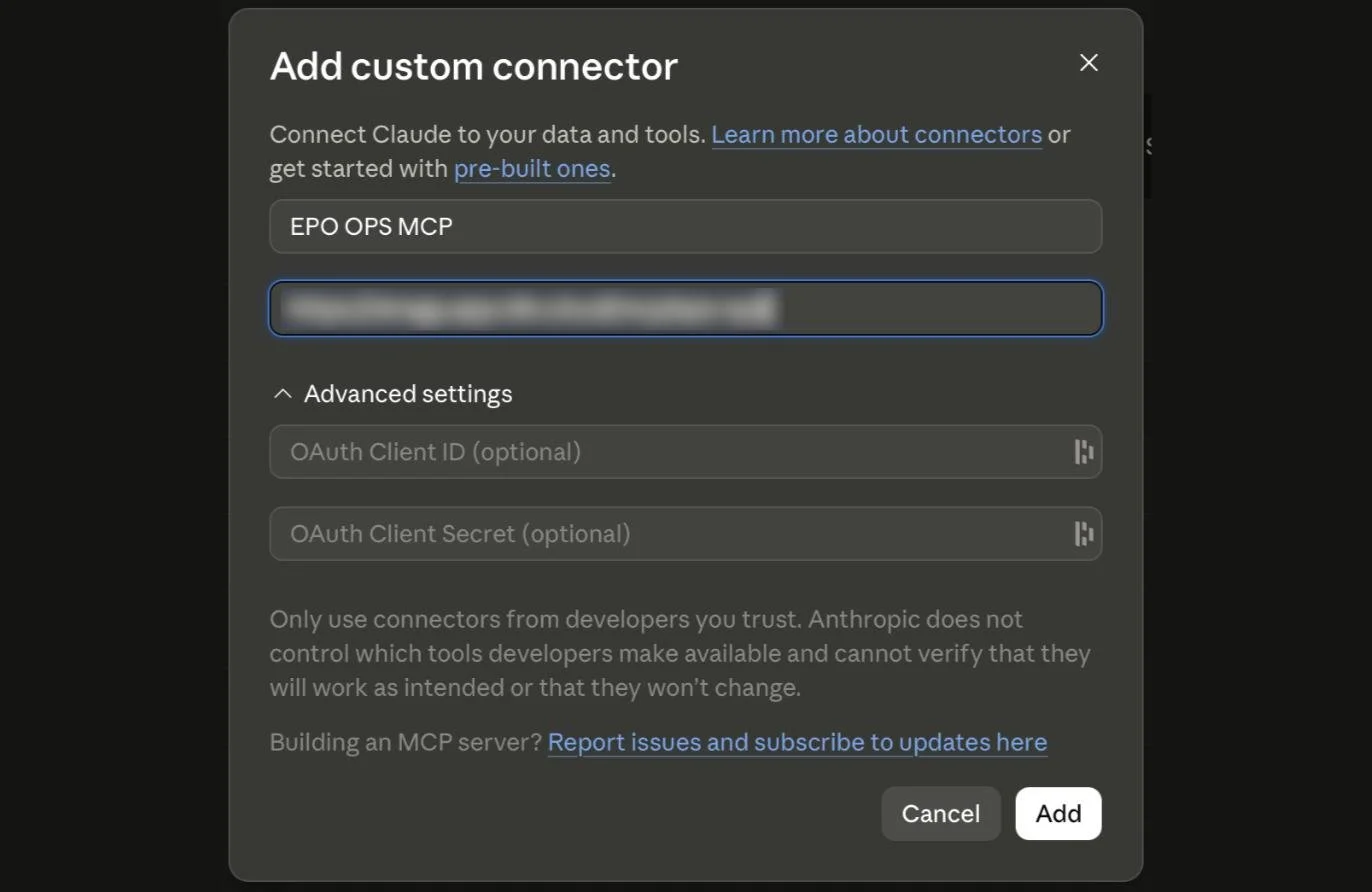
Add it as a custom connector to Claude (or whatever AI agent you are using).
Your agent will handle the OAuth2 handshake.
Test it
Ask your agent to “Get the bibliographic data for EP2954056.”
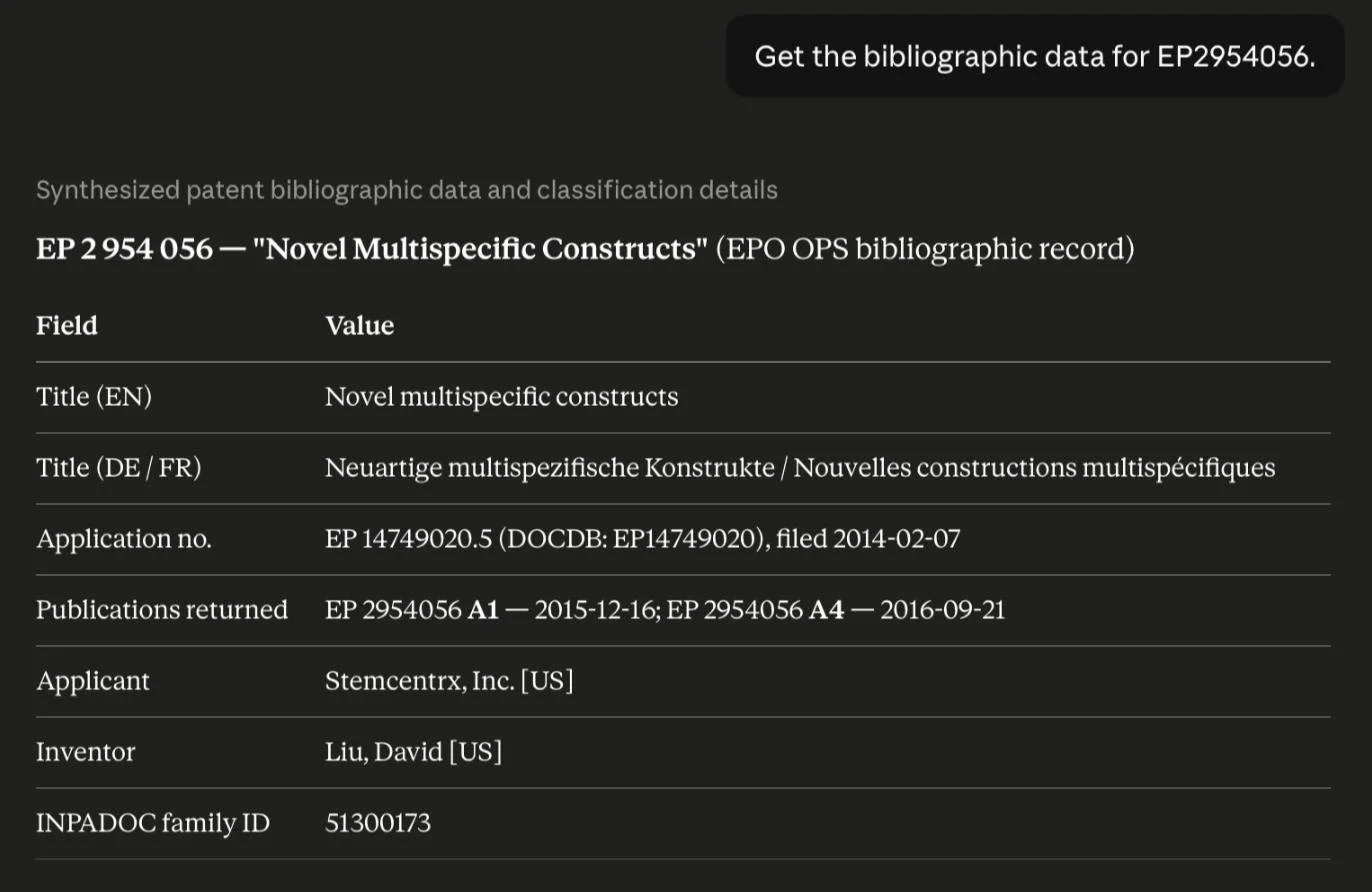
What you get
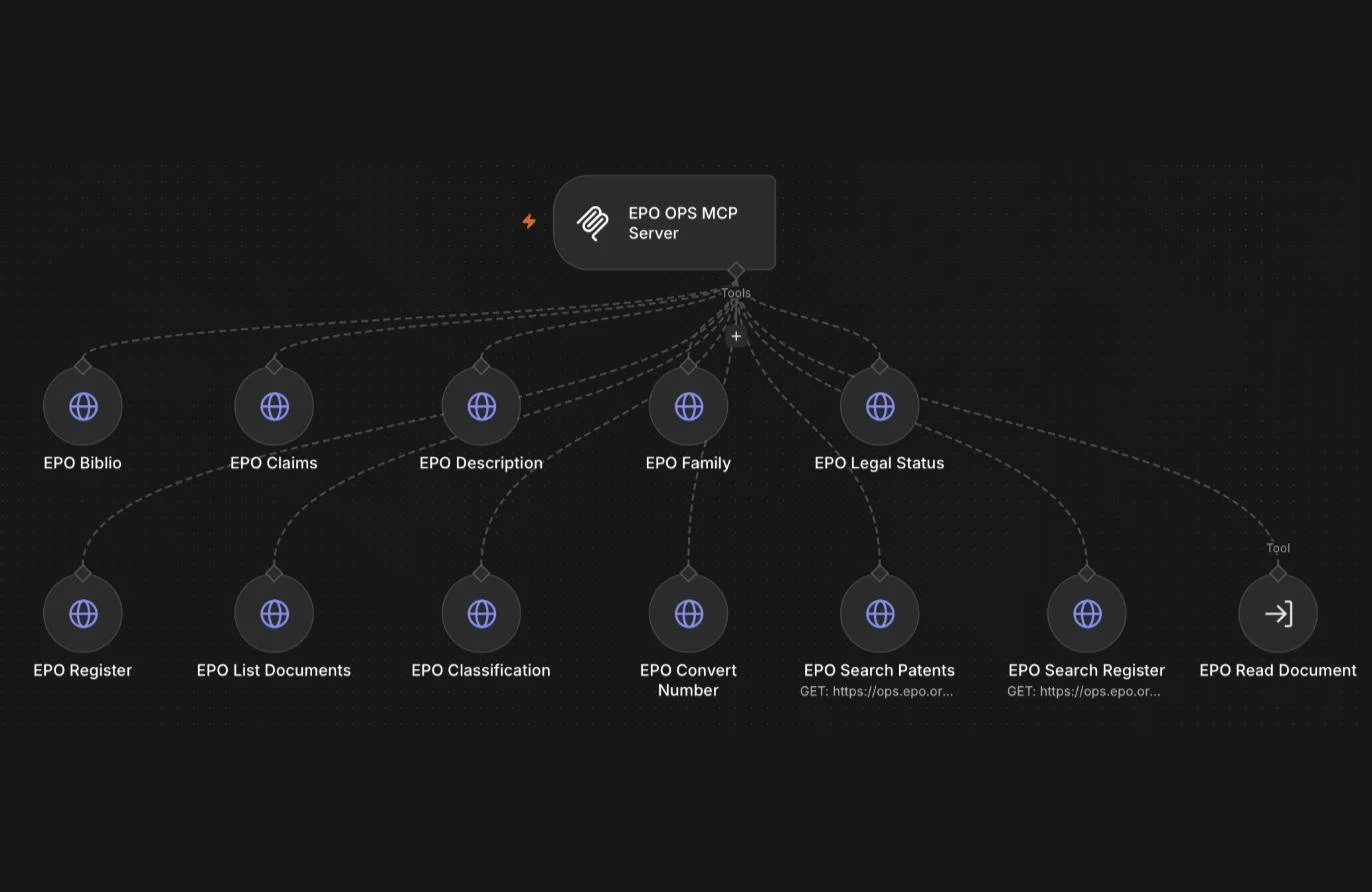
The MCP exloses 12 tools, including:
worldwide CQL search,
EP Register search,
bibliographic data across 100+ jurisdictions,
claims and description,
INPADOC family mapping,
INPADOC legal status,
full EP Register records,
CPC classification lookup,
number conversion, and
OCR of published document pages, including the EP search report.
A word of caution: The EPO’s API does not give you full file inspection.
Although some documents are included, the API will not serve Article 94(3) communications, applicant replies, minutes of oral proceedings, opposition briefs, and many other kinds of documents. This means your MCP tool will not provide them to your agent either.
As far as I can tell, none of these files are directly exposed through any publicly available API. They are provided through the European Patent Register web interface only.
But you can still get quick access to the file. The MCP is programmed to serve deep links so you can read or download EPO file wrapper docs from your browser, and upload them to your agent directly. The links look something like this:
https://register.epo.org/application?number=EP14749020&lng=en&tab=doclistThis pattern is worth using generally: when an API can’t serve something, good practice is to program the tool to hand off to the authoritative interface rather than report a dead end.
If you’d rather not build it
Everything above is free and yours to modify. The version I use in practice is PocketPart — a hosted MCP server on dedicated infrastructure, with the USPTO and EPO tooling above plus many others, including federal case law and dockets, PTAB, trademark status, MPEP, the CFR, prior art search, and deadline calculators. Same connection process as what you configured here.
Author Note
Stephen G. Nagy is a patent attorney and engineer at Strain PLLC. This article is for general informational and educational purposes only, is not legal advice, and does not create an attorney-client relationship. It reflects the author’s views, not necessarily those of Strain PLLC. Legal authorities change; verify currency before relying on anything here. For advice on your specific situation, consult qualified counsel.
This content is my own work: