I’m a lawyer. I built my own AI tools. Here’s how you can, too.
If you would like to follow along with screenshots, please see my corresponding post on Substack: https://stnagy.substack.com/p/im-a-lawyer-i-built-my-own-ai-tools
AI tools like Claude, ChatGPT, and Gemini are getting better at legal work, that is until you need them to pull primary source material. Ask one of these models to pull an office action from the patent office or a filing from PACER. They can’t. Last Friday I fixed that in about an hour, using Claude and n8n, without writing a single line of code. I’m a patent attorney, not a developer. If I can build this, you can too. Here’s exactly how.
Note: If you want to skip the build entirely, there is a production-grade MCP server called PocketPart that connects to Claude, ChatGPT, or Gemini in the same way you’ll configure Claude below, and includes a free tier. No build required. As of writing, it covers 141 tools across USPTO, EPO, prior art search tools, federal case law, MPEP, CFR, U.S. Code, SEC EDGAR, OFAC, federal rules, and more. But if you want to understand how an MCP server works and build your own, please read on.
Why automatic access beats manual context
Generative AI tools (Claude, ChatGPT, Gemini, etc.) are only as useful as the context you give them. Ask Claude to summarize the most recent filing in a PACER case, and it will fail. Ask it to analyze the latest office action in patent application, and it will fail. Not because it lacks the capability to reason about or summarize these documents, but because it has no way to reach them.
Most attorneys work around this manually. We attach PDFs, paste in text, or copy screenshots into a prompt window. That works, but just for single tasks. As AI models become genuinely agentic, capable of executing multiple steps or entire workflows unsupervised, manually babysitting context becomes a serious bottleneck.
The solution is to stop feeding AI background information and instead give it tools to access the information itself. That’s what a model context protocol (MCP) server does, and it’s what we are going to build in this article.
What’s in the stack
Today we’ll build an MCP server to teach Claude, ChatGPT, or Gemini how to access and read the public docket from a United States patent application. Here are the tools we will use:
1) Claude —We’ll use Claude to build and test the MCP server, working with it conversationally until the workflow is done. Sign up for an account at claude.ai. Claude tends to be strong at the kind of multi-step, agentic work this build involves, but the same process works with any assistant that “speaks” MCP, so feel free to experiment with ChatGPT or Gemini if you prefer. A paid version is likely required to avoid usage limits.
2) n8n — A workflow automation platform where you build automations visually. It’s central here for two reasons. First, n8n ships with a built in MCP server that lets Claude connect to your instance and assemble the workflow by prompt. Second, n8n publishes the workflow itself as its own MCP server, which is the tool we will build. This build uses n8n Cloud, but you can also self host. Sign up for an n8n account here (note: n8n requires a paid subscription after initial trial).
3) USPTO Open Data Portal — The USPTO’s free data platform, and the actual source of the docket data we will be reading. We’ll generate an API key here and give it to n8n so our workflow can pull application data and download the underlying documents. Sign up at data.uspto.gov — just note that getting an API key now requires a USPTO.gov account verified through ID.me, so set aside a few minutes for identity verification if you don’t have an ID.me account already.
4) Mistral — An OCR provider that integrates easily into n8n. Many patent filings, especially older ones, are scanned images without any text. We will use Mistral OCR to turn those into clean, LLM-readable text. Sign up for a Mistral account here (note: Mistral OCR is a paid API, roughly $2 per 1000 pages).
Setting up n8n
Sign up for an n8n Cloud account at n8n.io.
After your workspace is created, note your instance URL — you will need it when connecting Claude to n8n. n8n’s free trial is sufficient to get started, but you will need a paid subscription to continue using the tool we build.
Inside your n8n instance, you need to enable MCP server features and add your USPTO and Mistral credentials. If you feel comfortable figuring this out on your own (or with the help of an AI), you can skip to the next section. Otherwise, read on.
Detailed n8n Configuration
Sign in to your n8n instance. Click “Settings” in the lower left sidebar and select “Instance-level MCP (Preview).”
Ensure the toggle in the upper right is “enabled”
Click “Connection details” to retrieve your n8n server URL. Save this — you will paste it into Claude in the next step.
After obtaining your USPTO API key and Mistral API key (step-by-step details below), return to n8n and add these credentials. From the “Overview” page, navigate to “Credentials.”
Create two new credentials:
USPTO Credential
Click the “Create Credential” and select “Header Auth.” Set the “Name” field to “X-API-KEY” and the “Value” to your USPTO API key. Rename the credential to something recognizable by clicking the default name “Header Auth” and changing it to something like “USPTO API Key.” Save the credential.
Mistral API Key
Click the “Create Credential” button and select “Mistral Cloud API.”
Enter your Mistral API key in the “API key” field and save.
Connecting Claude
Claude is the AI assistant we will use to build the workflow. Sign up for an account at claude.ai. A paid plan is recommended to avoid usage limits during the build, but is not strictly necessary.
Log in to your account and click “Customize” then “Connectors” on the left sidebar.
Click the + button to “Add connector” and then “Browse Connectors.”
Enter “n8n” in the connector search bar and connect.
A window will open requesting your n8n server URL. Enter the URL you saved from the n8n configuration above. Claude will then prompt you to authorize the n8n connection.
Getting your USPTO API Key
Navigate to data.uspto.gov and create an account (if you don’t have one already). Account creation requires a USPTO account verified by ID.me.
Once verified and signed in, navigate to “Manage API Key” in the top menubar (or use this direct link: https://data.uspto.gov/apikey/key-reveal).
Add the API key to the USPTO credential in n8n (see above).
Setting up Mistral OCR
Navigate to Mistral here and create an account. Once signed in, click on your workspace and select “API Keys” from the left sidebar
Generate a new API key and store it alongside your USPTO API key in n8n (see above). Mistral OCR is a paid API, approximately $2 per 1,000 OCR pages at the time of writing. Usage on a typical docket is modest.
Building the Server
The hard part is already over.
The Claude prompts below encode all technical decisions. Read them before prompting if you would like. We will create two workflows: a main MCP workflow and a sub workflow to download and OCR file wrapper documents and pass information back to the main MCP.
Start a new conversation in Claude. Use Claude Sonnet 4.6 (thinking) or Claude Opus 4.8 (thinking). Paste the first prompt exactly as written.
Prompt 1:
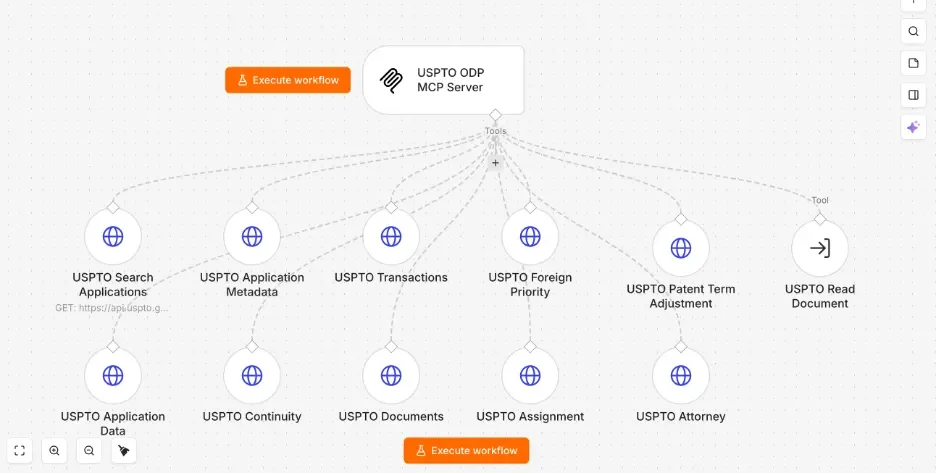
Using the n8n MCP, build a workflow called “USPTO ODP MCP Server” that exposes the USPTO Open Data Portal Patent File Wrapper API as MCP tools. Create it in a project or location where my USPTO ODP key (an HTTP Header Auth credential sending x-api-key) is accessible. Build the whole workflow via the workflow-code SDK in one shot so the tool connections are created correctly. Do NOT assemble it node-by-node with the addConnection operation, which only produces “main” connections, not the ai_tool connections an MCP trigger needs.

Nodes:

- MCP Server Trigger (@n8n/n8n-nodes-langchain.mcpTrigger v1.1), path “uspto-odp”.

- 10 HTTP Request Tool nodes (n8n-nodes-base.httpRequestTool v4.4), each connected ai_tool -> the trigger. On every one: auth = generic credential type -> HTTP Header Auth; optimizeResponse = true; retryOnFail = true, maxTries = 3, waitBetweenTries = 2000; timeout = 30000; plus a clear toolDescription.

Nine take a single input, applicationNumberText via $fromAI, stripped to digits in the URL (remove [^0-9] — use a character class, never \d), and GET:

1. Application Data: https://api.uspto.gov/api/v1/patent/applications/{appNum}
2. Application Metadata: .../{appNum}/meta-data
3. Continuity: .../{appNum}/continuity
4. Transactions: .../{appNum}/transactions
5. Documents: .../{appNum}/documents
6. Foreign Priority: .../{appNum}/foreign-priority
7. Assignment: .../{appNum}/assignment
8. Patent Term Adjustment: .../{appNum}/adjustment
9. Attorney: .../{appNum}/attorney

The tenth, “Search Applications”: GET https://api.uspto.gov/api/v1/patent/applications/search with query params: q ($fromAI); offset ($fromAI, type string, default “0”); limit ($fromAI, type string, default “25”) — offset/limit MUST be string type, a number type errors at the MCP boundary; and a fixed “fields” projection returning only a compact digest (applicationNumberText, plus applicationMetaData.inventionTitle/filingDate/firstApplicantName/firstInventorName/applicationStatusDescriptionText/applicationTypeLabelName/patentNumber/grantDate/earliestPublicationNumber/earliestPublicationDate/groupArtUnitNumber/examinerNameText). Set this node’s response option neverError = true so a zero-hit search returns the API body instead of throwing. Its toolDescription should explain USPTO simplified query syntax over applicationMetaData.* fields (e.g. applicationMetaData.inventionTitle:CRISPR AND applicationMetaData.applicationTypeLabelName:Utility) and that the top-level “count” is the total number of matches.

Validate before creating. Then tell me: (a) to bind my USPTO Header Auth credential to the tool nodes in the UI if the API didn’t attach it (it can’t bind credentials to HTTP Request nodes); (b) if any tool node shows disconnected, to draw its ai_tool connection to the trigger in the editor; (c) to publish the workflow. Give me the workflow ID and the MCP server URL.
Claude will use your connected n8n instance to build the first workflow automatically. When it finishes, it will give you a short list of manual steps to complete in the n8n UI. Follow those before moving on.
Feel free to spatially rearrange nodes. It will not impact the function as long as the connections (lines) remain.
Once the first workflow is published, return to the same Claude session and paste a second prompt.
Prompt 2:
Using the n8n MCP, create a workflow called “USPTO Document Reader” that downloads one USPTO file-wrapper document and OCRs it to markdown. Create it in a project or location where BOTH my USPTO ODP key (an HTTP Header Auth credential sending x-api-key, not Bearer) and my Mistral Cloud credential are accessible.

Five nodes, linear chain:

1. Execute Workflow Trigger (v1.2), input source = “workflow inputs”, inputs: applicationNumberText (string), documentIdentifier (string), pageStart (number), pageEnd (number).

2. HTTP Request (v4.4) “Download Document”: GET https://api.uspto.gov/api/v1/download/applications/{APP}/{DOC}.pdf, where APP = applicationNumberText with non-digits stripped and DOC = documentIdentifier with non-alphanumerics stripped (use character-class regex like [^0-9], NOT \d, to avoid escaping bugs). Auth = generic credential type -> HTTP Header Auth. Response format = File, output property “data”. Timeout 60000.

3. Code node (v2, run once for all items) “PDF to Base64”: loop the items and set json.pdfBase64 = (await this.helpers.getBinaryDataBuffer(i, “data”)).toString(”base64”). Use this helper, NOT an expression — expression-based base64 breaks under n8n’s filesystem binary mode.

4. HTTP Request (v4.4) “Mistral OCR”: POST https://api.mistral.ai/v1/ocr, auth = predefined credential type -> Mistral Cloud. JSON body: { model: “mistral-ocr-latest”, document: { type: “document_url”, document_url: “data:application/pdf;base64,” + the pdfBase64 from the previous node }, include_image_base64: false }. Timeout 120000.

5. Code node (v2) “Format Output”: read the original inputs from the trigger node, join pages[].markdown, slice to pageStart..pageEnd, and return { applicationNumberText, documentIdentifier, totalPages, pagesReturned, text }. Build the page separator with String.fromCharCode(10) — do NOT type a newline inside a quoted string, it throws a SyntaxError.

Validate before creating. Then: (a) tell me exactly which credential to attach to which node so I can do it in the n8n UI — the API can’t bind credentials to HTTP Request nodes; (b) remind me to PUBLISH the workflow (it must be published, not just saved, to run from a live MCP); (c) give me the workflow ID.
Again, follow Claude’s post-build instructions: bind your USPTO and Mistral credentials to the correct nodes, then publish the workflow.
Once the second workflow is published, return again to the same Claude session and paste a third and final build prompt:
Prompt 3:
Using the n8n MCP, add a tool to my existing USPTO ODP MCP Server workflow that exposes my “USPTO Document Reader” sub-workflow.

Add a Tool Workflow node (@n8n/n8n-nodes-langchain.toolWorkflow v2.2) named “USPTO Read Document”: source = database, pointing at the sub-workflow by ID. Map its four inputs with $fromAI — applicationNumberText, documentIdentifier, pageStart, pageEnd — giving pageStart/pageEnd numeric defaults (1 and 30) so the model can omit them. Description: instruct the model to first list a file wrapper to obtain a documentIdentifier, then call this tool to OCR that document.

Two steps the n8n API can’t do — flag them for me to do in the UI:

- The connection: addConnection only creates “main” connections, so I’ll connect the new node’s tool output to the MCP trigger’s tool input myself in the editor (it must be an ai_tool connection).

- Publish the workflow afterward.

Once you have drawn the connection and published, the new tool should appear in my MCP client.
You may need to change the connection between the USPTO Document Reader Tool node and the MCP Server node. Claude by default connected the tool to the server node’s input (the top of the node) rather than on the server node’s tool input. There should be a dashed line from the tool to the “tools” connection (not a solid line to the top of the node).
Registering your MCP Server
Once both workflows are published, double click the MCP server node in the main workflow.
Click the “Production URL” tab and copy the MCP URL.
Add this MCP URL as a Custom Connector in Claude. Paste the URL in the “Remote MCP server URL” field (leave the advanced settings blank).
Claude should automatically authenticate.
The moment of truth…
Once both workflows are published, return to Claude and ask it a simple question that requires USPTO data:
What is the status of patent application 17/123,456?
Claude should call your MCP server automatically and return live data from the USPTO. If it does, the build worked.
You can also ask detailed questions.
Claude them provides a detailed discussion of each office action and response, followed by a summary:
Troubleshooting
If Claude answers without using the tool. Sometimes Claude will attempt to answer from its training data rather than calling your MCP server. If this happens, explicitly prompt it: “Check your available MCP tools and use the USPTO tools to answer this.” To fix this globally, navigate to Claude’s General Settings and add an instruction to always check for relevant MCP tools when answering questions.
If Claude returns an error or no data. If Claude returns an error or generic response rather than live data, you can ask Claude to attempt to fix it or give you simple instructions. The most common causes are an unpublished workflow, an unbound credential, or a disconnected node. Check those three first before troubleshooting further.
Beyond the build
The server you just built gives Claude direct access to the USPTO file wrapper API, ten endpoints plus document OCR. It works, and it’s yours to extend.
The version I use in practice is PocketPart, a hosted MCP server deployed on dedicated infrastructure, not a workflow tool. As of writing, it exposes 141 tools across the sources lawyers actually use: USPTO and EPO patent data, federal case law and dockets, PTAB proceedings, TSDR trademark status, MPEP and U.S. Code, Federal Register and CFR, SEC EDGAR, OFAC screening, federal rules and deadline calculators, prior art search across USPTO, Google Patents, PubMed, arXiv, and more. It connects to Claude, ChatGPT, and Gemini identically to what you configured above.