I’m a lawyer. I built my own AI tools. Now they look for prior art.
This is Part 3 of a mini-series on New and Useful: “I’m a lawyer. I built my own AI tools.”
In July and August, I walked through building MCP servers to give Claude, ChatGPT, or any agentic AI direct access to USPTO and EPO data.
I’m a lawyer. I built my own AI tools. Here’s how you can, too.
I'm a lawyer. I built my own AI tools. Now they read European patents, too.
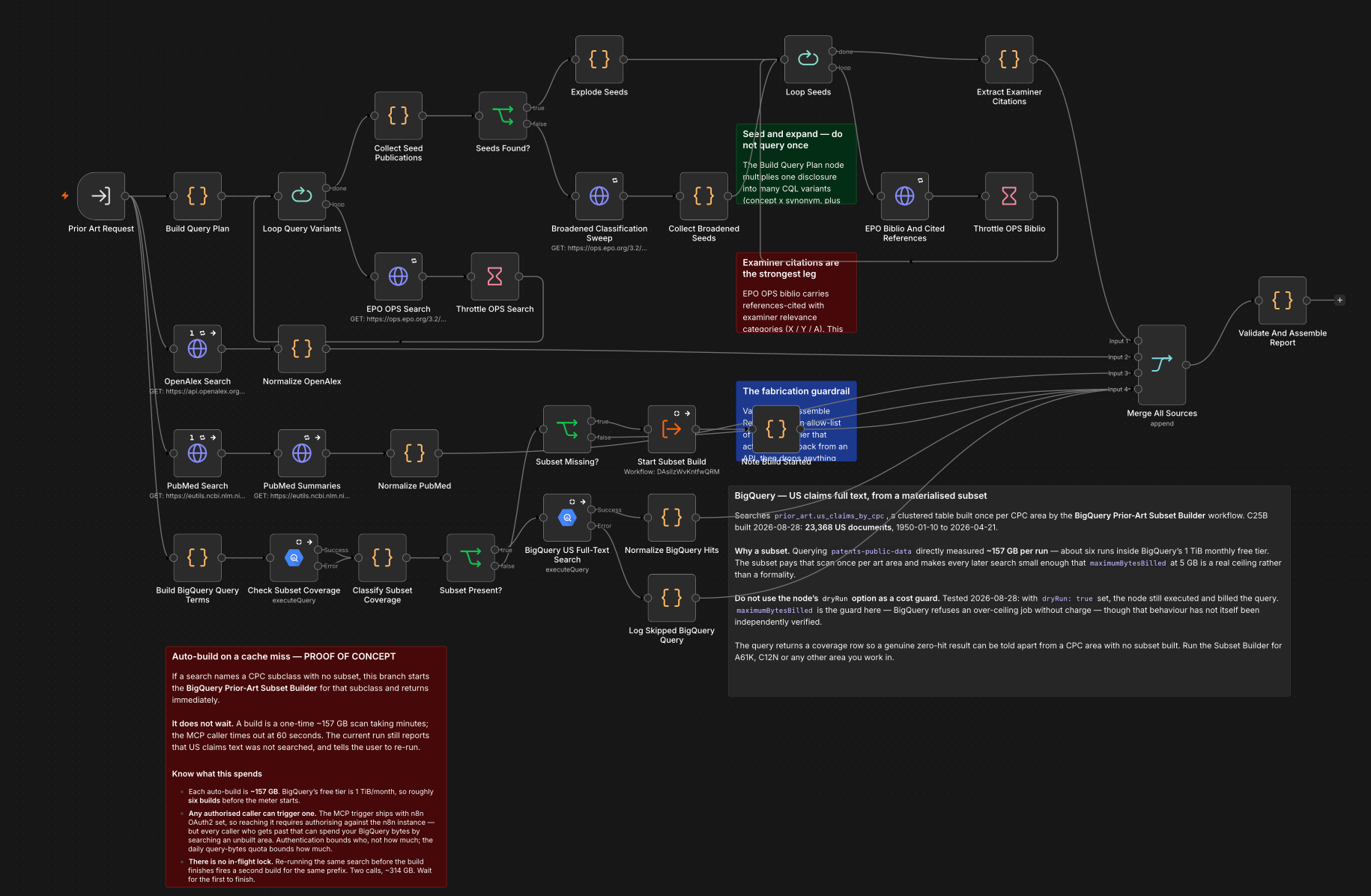
This time, I built tooling that helps anyone search for prior art by allowing agentic AI to query patent data at the EPO and Google’s patent data, and non-patent literature data at OpenAlex and PubMed.
It took a morning, and as I did with the EPO tooling, I will skip the click-by-click walkthrough. As you will see, this workflow includes four separate tools, so configuration is a bit more involved.
If you would like to try building this prior art tooling yourself, or if you would like to add additional capability, head over to my USPTO MCP Build article for background. The build steps will be similar, although the final workflow is a bit more complex (it may help to ask Claude or ChatGPT to review my workflow first as part of your build efforts).
If you build it, please let me know. And if you would like me to build something custom for your business, drop me a line.
Otherwise, I have put the design for the prior art search tooling in a GitHub repo, where you can download it directly:
https://github.com/stnagy/patent-mcp-servers/releases/tag/v1.3
Download the “source code” zip file under “Assets.”
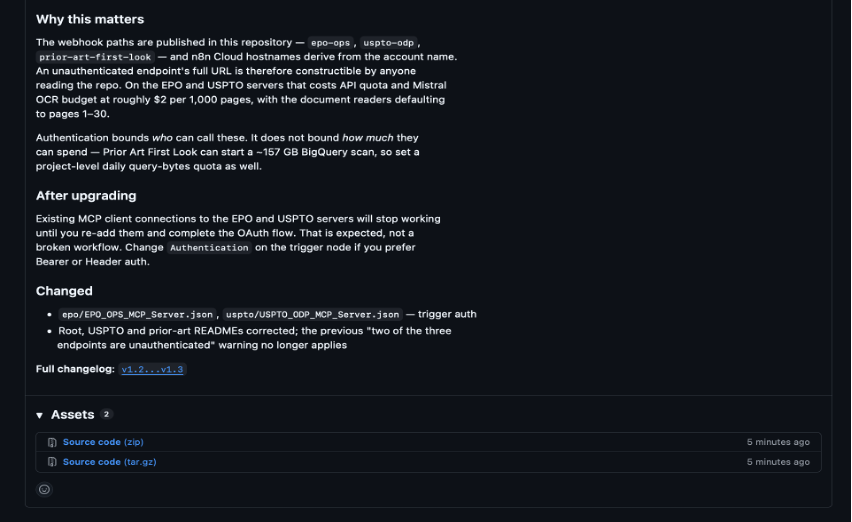
Let me explain how to install them.
Installation
Prerequisites
An account on n8n.io. Free to try.
EPO OPS credentials: Free. Register an app at developers.epo.org to obtain a Consumer Key + Consumer Secret Key.
Google BigQuery credentials: billing must be enabled on the Google Cloud project, but the first 1 TiB of query processing each month is free.
EPO OPS setup
Follow the instructions from my prior EPO tooling post to create an EPO OPS credential in n8n.
Google BigQuery setup
Follow these instructions to create a Google BigQuery credential in n8n.
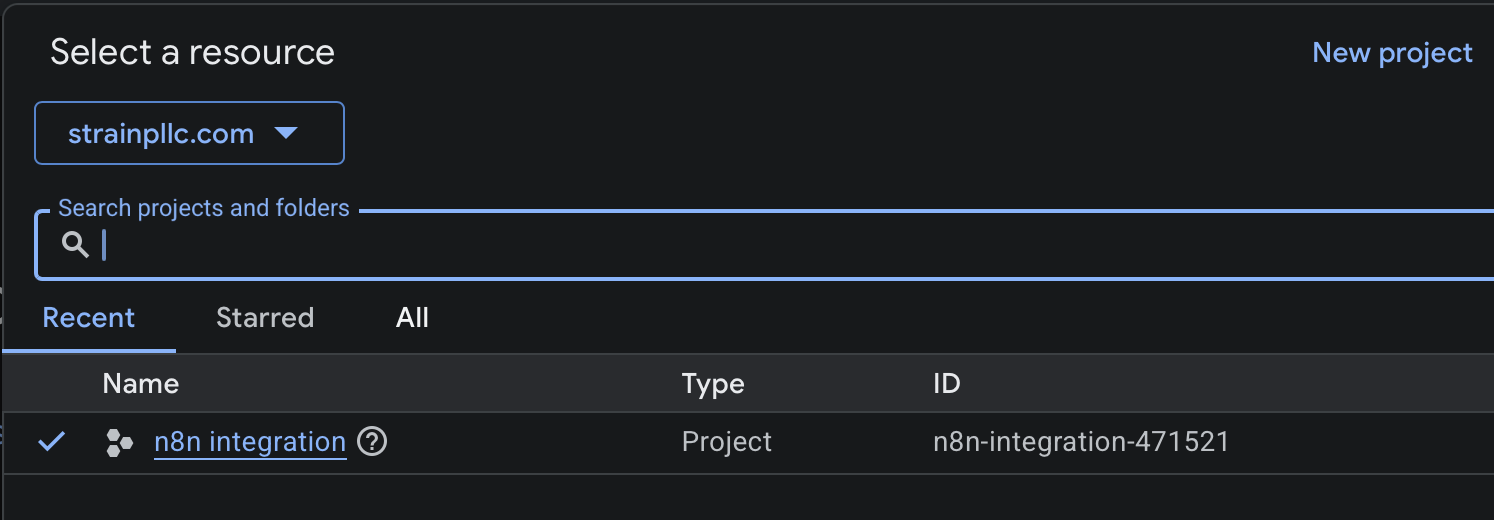
Sign in to https://console.cloud.google.com. Use the project picker (showing as “n8n integration” here) to create or select a project.
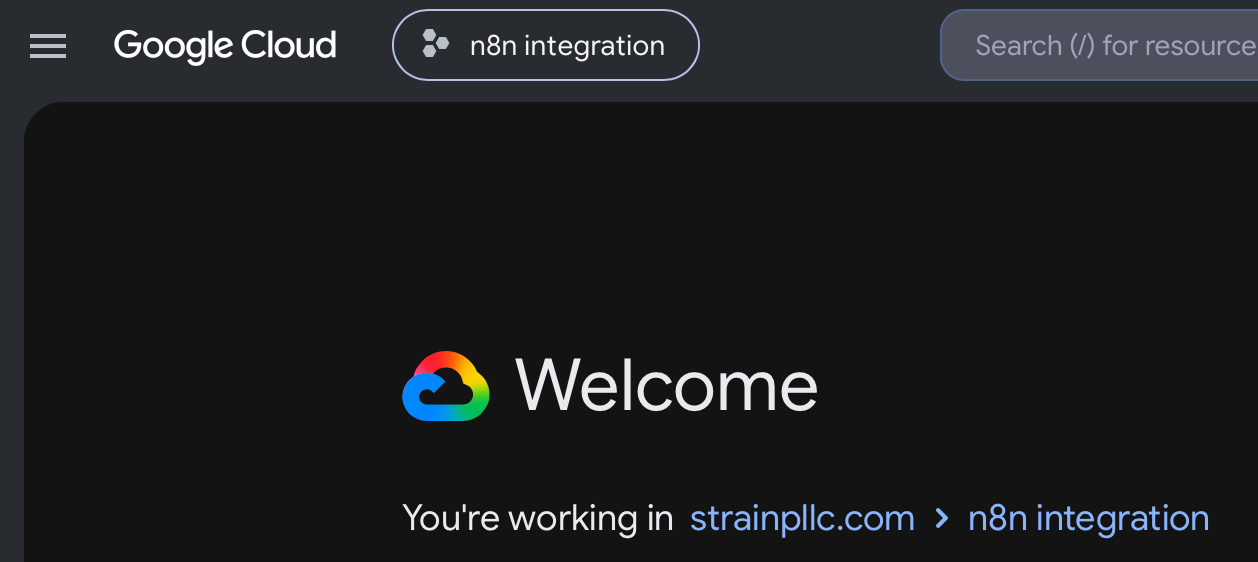
Once you have created or selected your project, make a note of your project ID in the project picker:
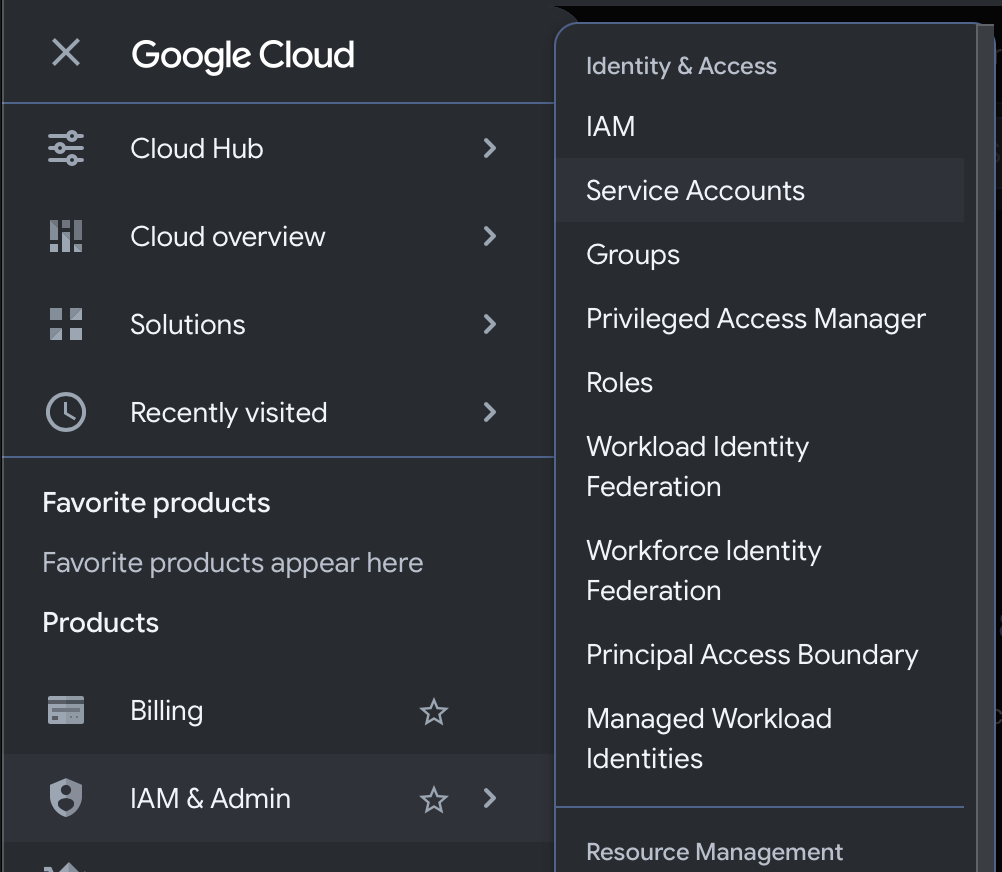
Then open the sidebar and click on IAM & Admin → Service Accounts.
Create a new Service Account
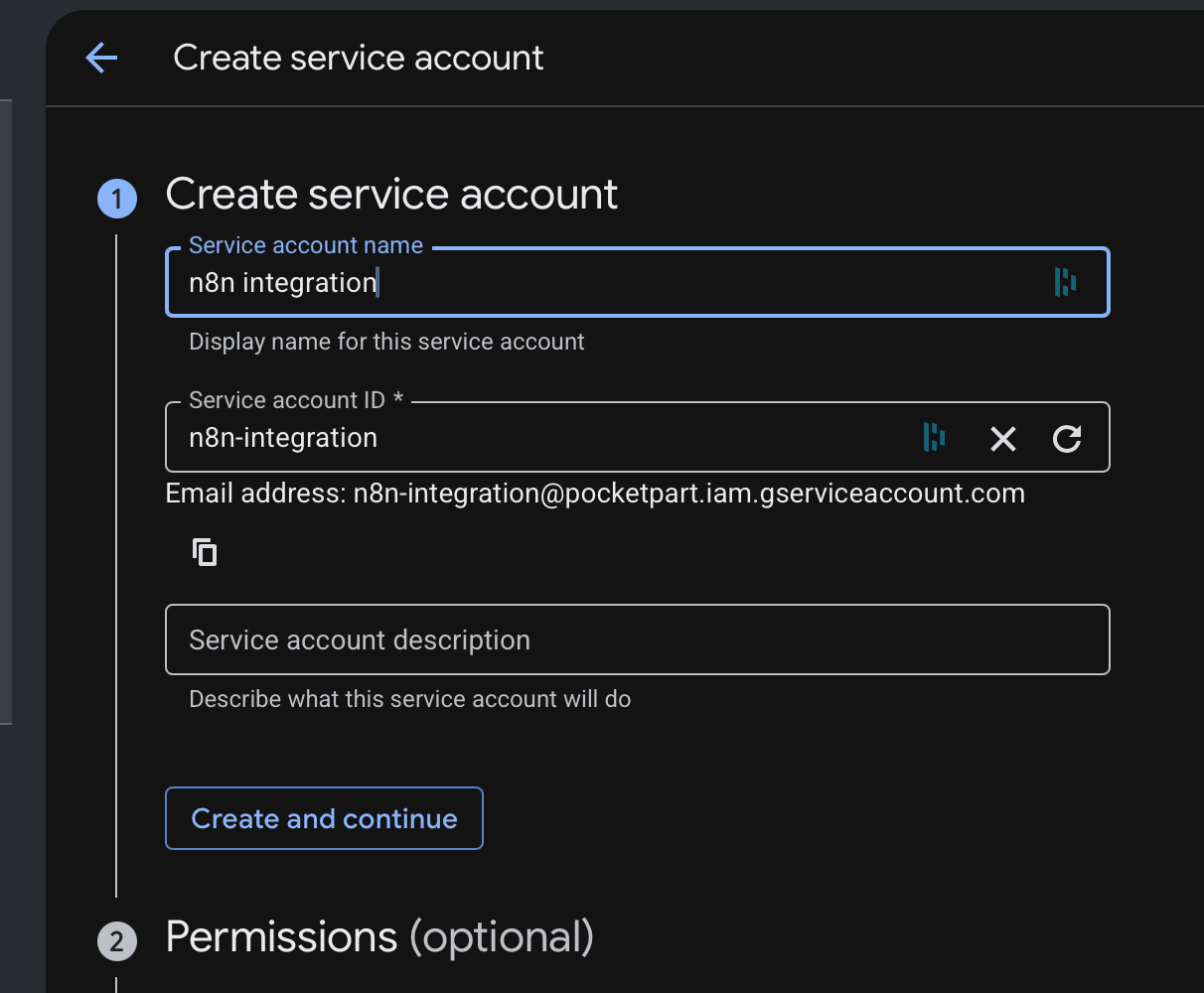
Click “Create and continue” and select the following permissions:
BigQuery Job User
BigQuery Data Editor
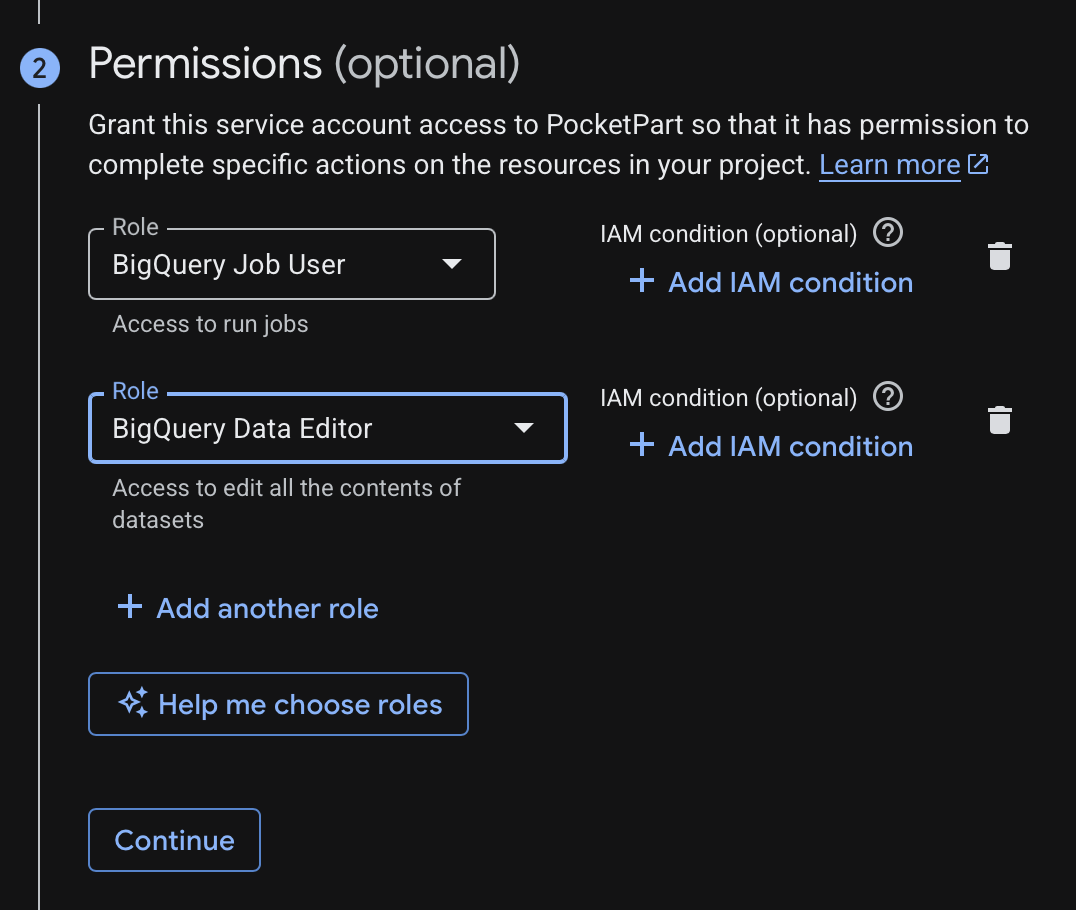
Then click done.
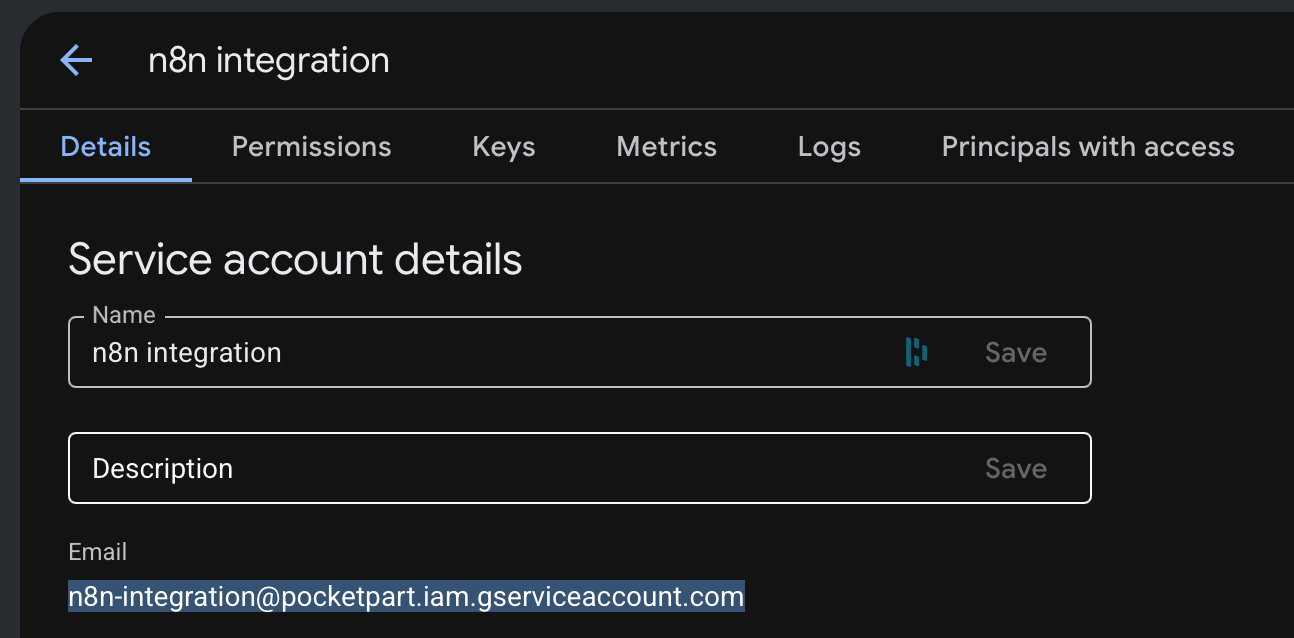
Once complete, click on the Service Account, and copy the Email account listed.
Then create a new JSON key for the Service Account.
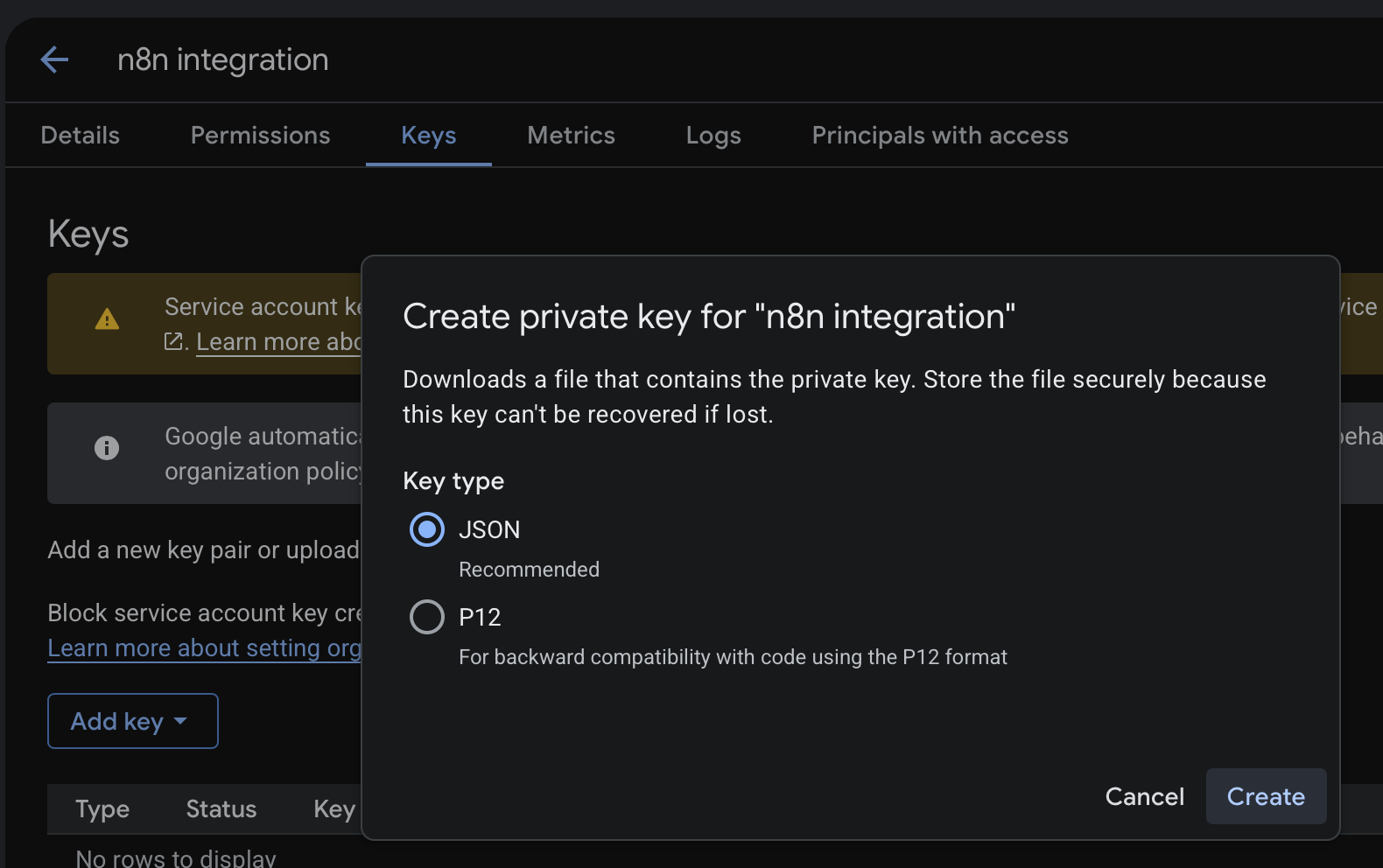
A JSON key file will automatically download.
In n8n, create a new “Google Service Account API” credential.
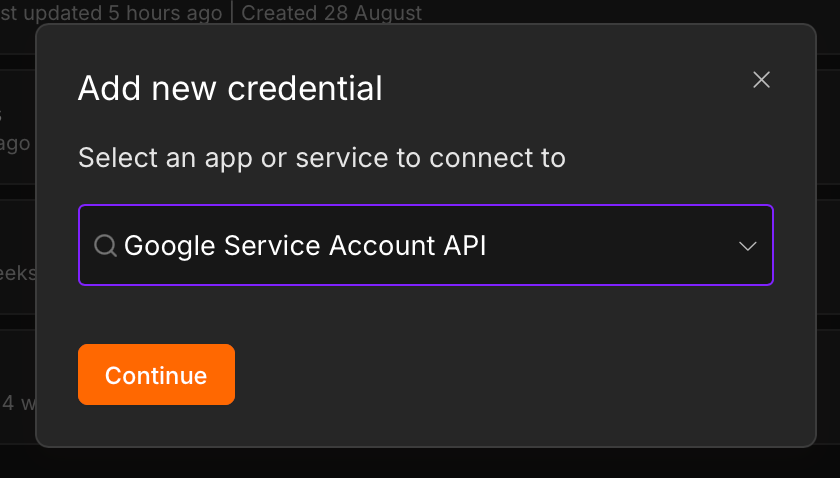
Insert the Service Account email address from above in the email field, and copy and paste the secret key from the downloaded JSON file into the Private Key field (make sure to include the “-----BEGIN PRIVATE KEY-----” and “-----END PRIVATE KEY-----\n” text in the field).

n8n setup
First, sign into your n8n account.
Create a new workflow, and import the workflow files ( [ three dots ] → Import from file … ).
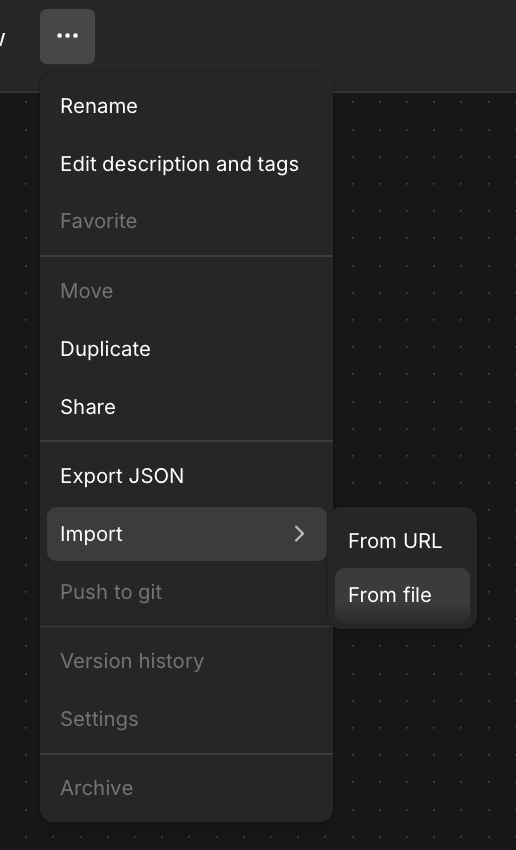
Import the n8n workflow files you downloaded from GitHub in the following order:
BigQuery_Subset_Builder.json
Prior_Art_Retrieval_Engine.json
Prior_Art_MCP_Server.json
Set your credentials
BigQuery Subset Builder
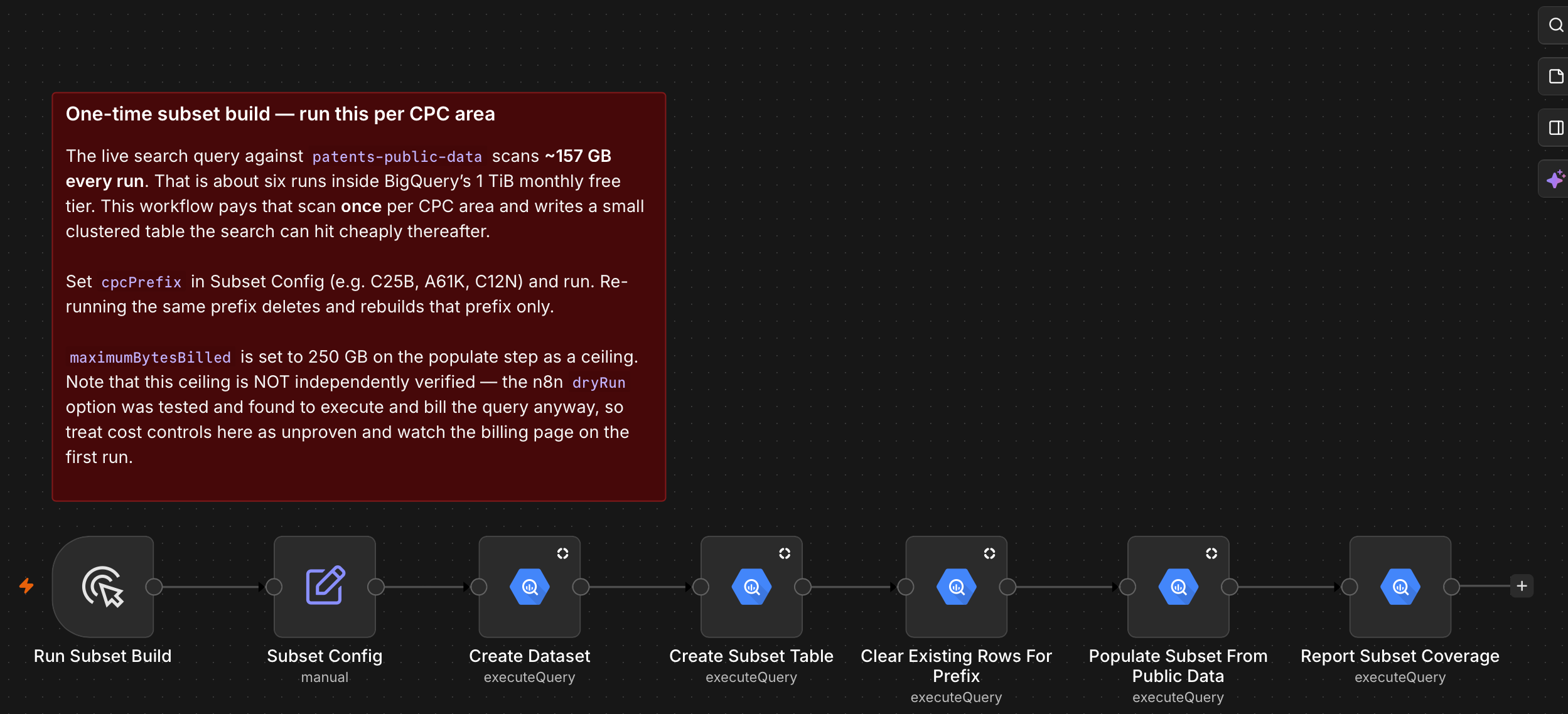
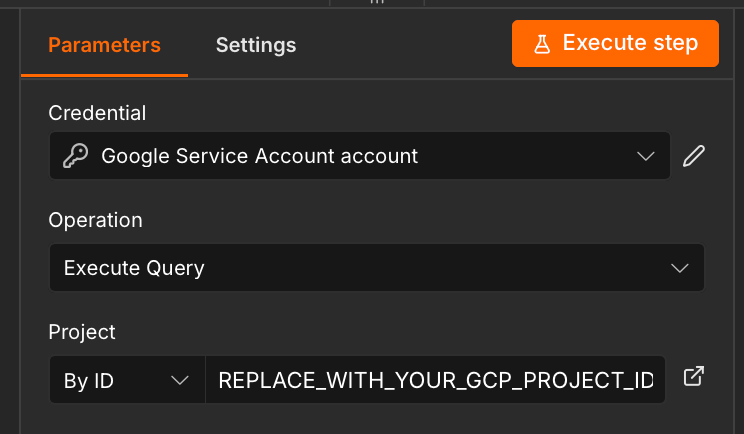
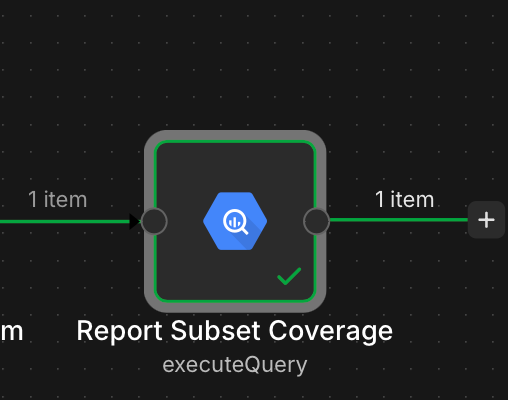
Open up all of the Google BigQuery nodes and set two fields:
Your Google credentials (created above)
The Google project ID you noted earlier
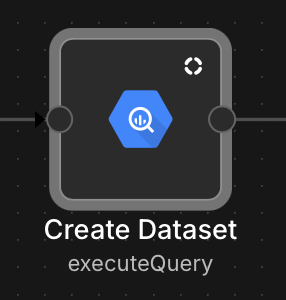
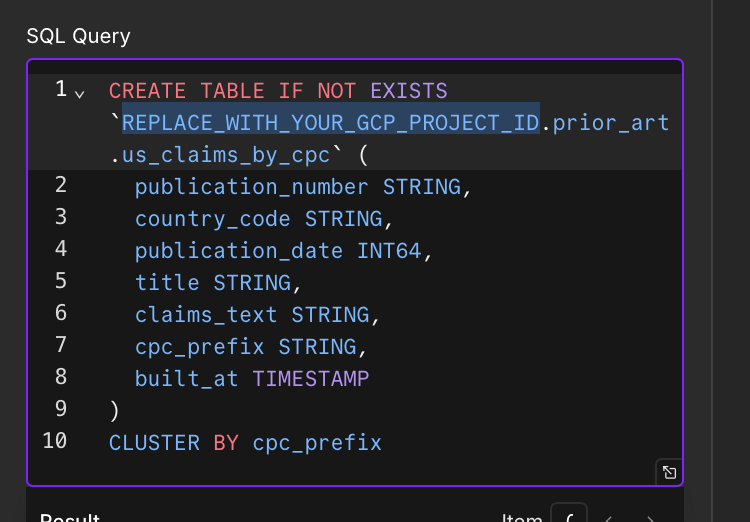
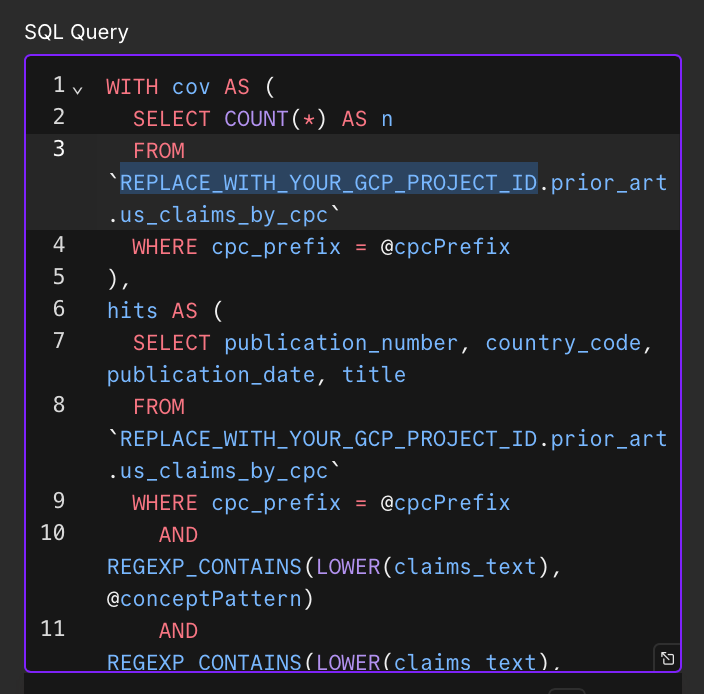
Then, once this is done, look in the SQL code and replace the placeholder (REPLACE_WITH_YOUR_GCP_PROJECT_ID) with the same project ID:
Execute this workflow one time. Ensure it completes all the way to the final node.
Prior Art Retrieval Engine
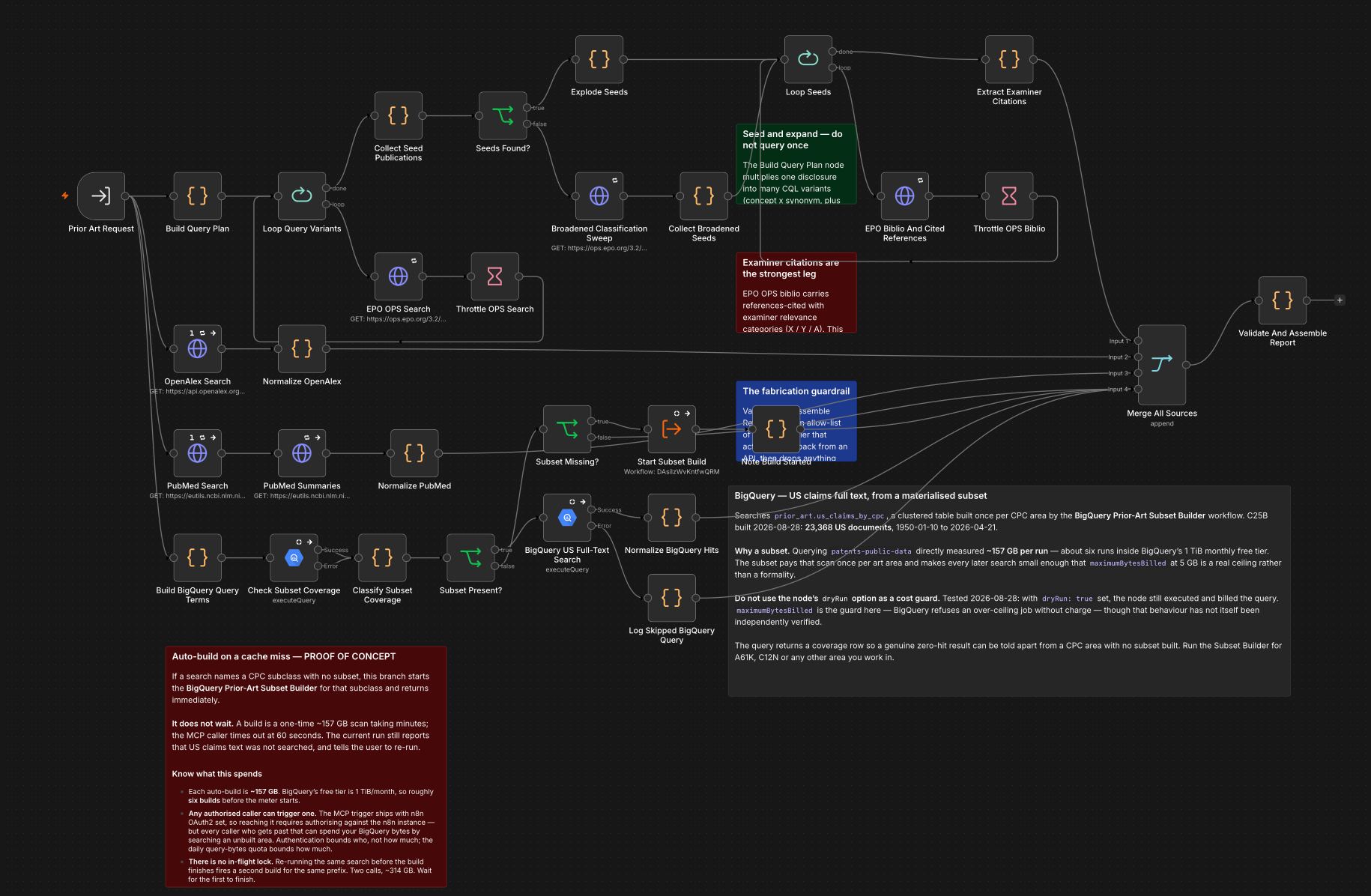
Again, open up all of the Google BigQuery nodes and set the same two fields you set in the prior step. Make sure to replace the placeholder in the SQL code. Note there are two instances in the image below of the placeholder. You must replace both.
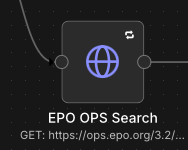
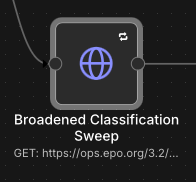
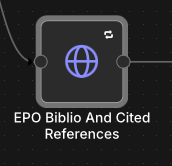
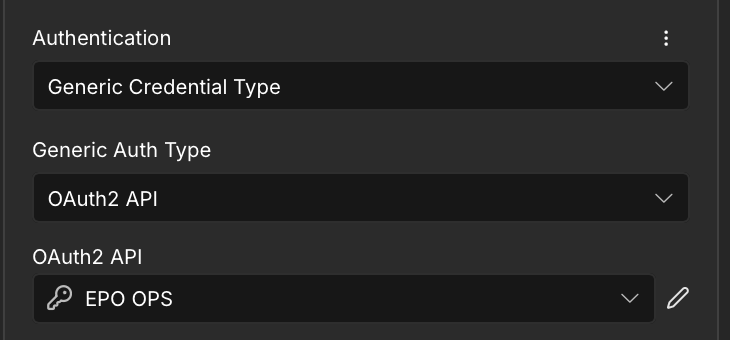
Then open all EPO OPS nodes and make sure your EPO OPS credential is set under the OAuth2 API field.
Next, enter your email address and your customized tool name in the PubMed node (e.g., “my-firm-prior-art”).¹
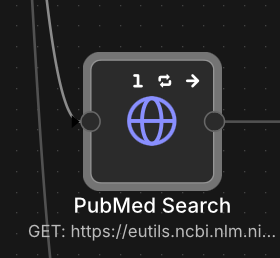
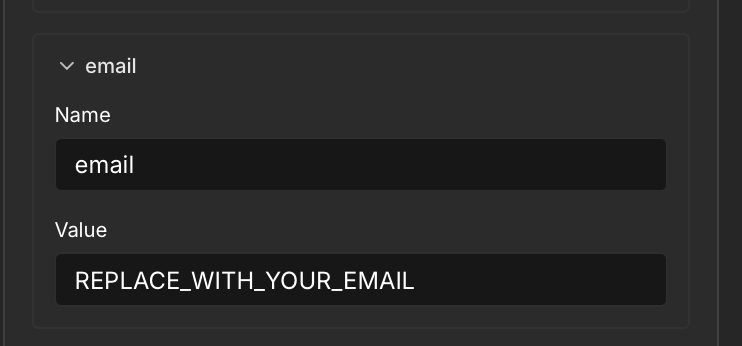
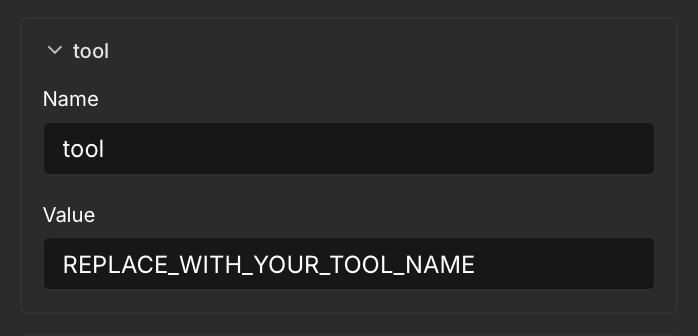
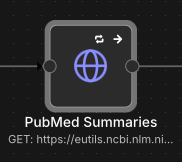
Perform the same steps in the PubMed Summaries node:
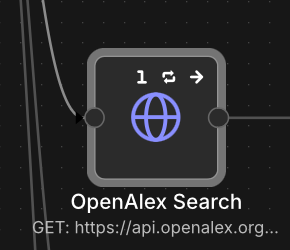
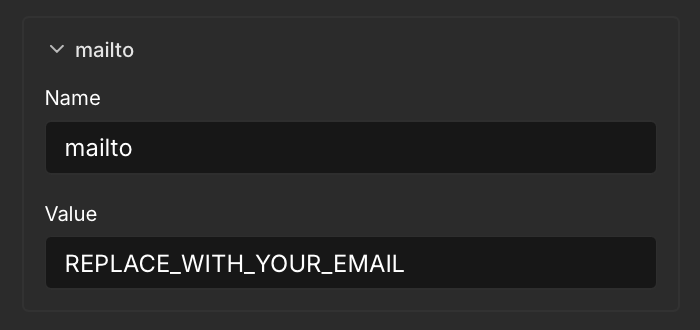
Finally, enter your email address in the OpenAlex node.
Publish the workflow.
Prior Art MCP Server
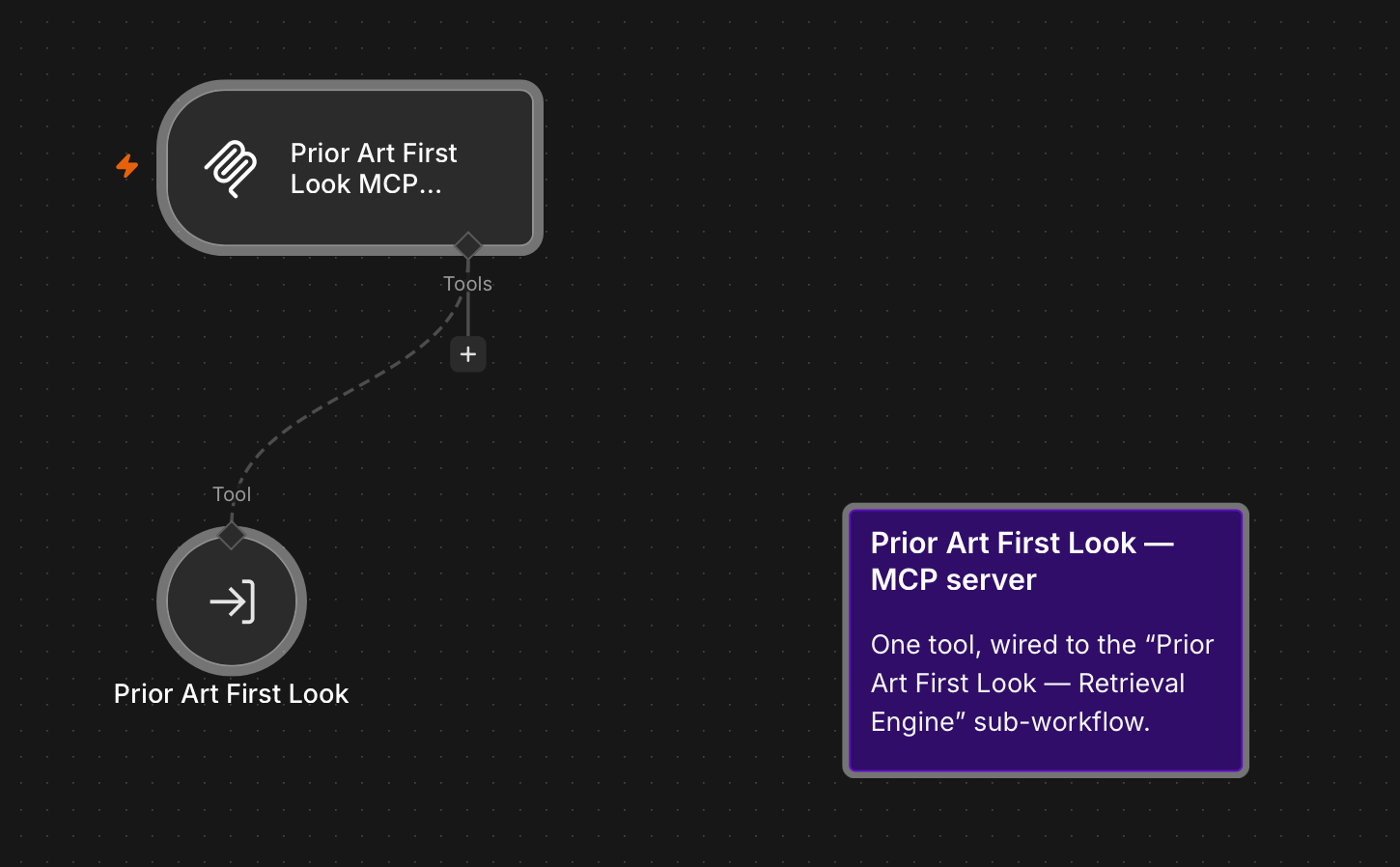
Just import the workflow and publish!
Before you test it
You must enable MCP access for the last two workflows. By default, MCP access is disabled. You can change this setting on the workflow dashboard.
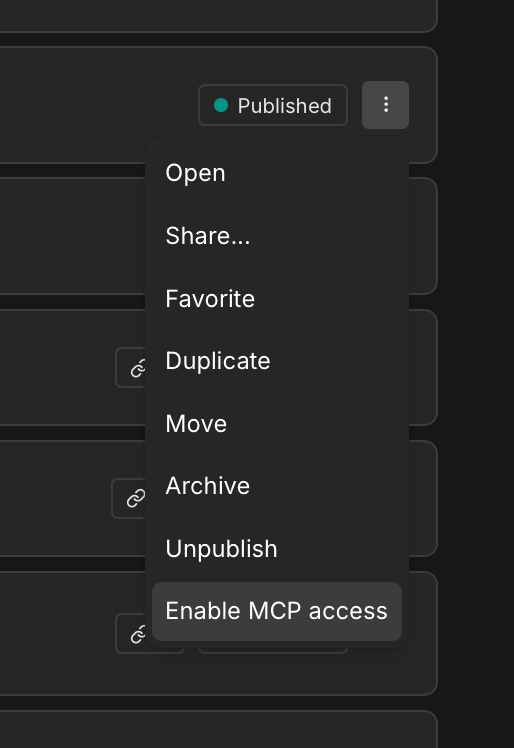
You should see the MCP logo shown next to the workflow.

What you get
This MCP tool will allow your agent to query four sources as part of a first cut prior art search:
Google BigQuery (patents-public-data)
EPO OPS (worldwide, title + abstract, families, examiner citations)
OpenAlex (an open catalog to the global research system)²
PubMed (NIH biomedical literature database)³
Google BigQuery is a free resource for the first 1 TiB of query data processed per month,⁴ after that, it requires payment at a relatively reasonable rate (currently $6.25 per TiB for on-demand queries). This is enough to search in 6 different subclasses per month, with essentially unlimited queries in each subclass, because the tool will index the class.
And what it does not
This tool cannot replace a professional searcher or reproduce their detailed results. It is just a first step that can be helpful to orient your focus, and, in some cases, give you an answer by surfacing documents from the most commonly used databases.
This tool also does not emit any kind of relevance scoring. The output is essentially a reading list for your agent, which may or may not contain the most relevant results. Multiple targeted searches might reduce the risk, but I have not measured this empirically.
A note on confidentiality
Any information you type into an agent is not only shared with that agent’s provider (Anthropic, OpenAI, Google, etc.), but may also be shared with the providers of these tools (EPO, Google, OpenAlex, and NIH). Keep that in mind while using the tool.
Troubleshooting
Forgetting to update any of the credentials, email addresses, or Project IDs will likely cause the MCP tool to at least partially fail. Anytime you update one of these, you must republish the MCP tools in the same order I present them in this article.
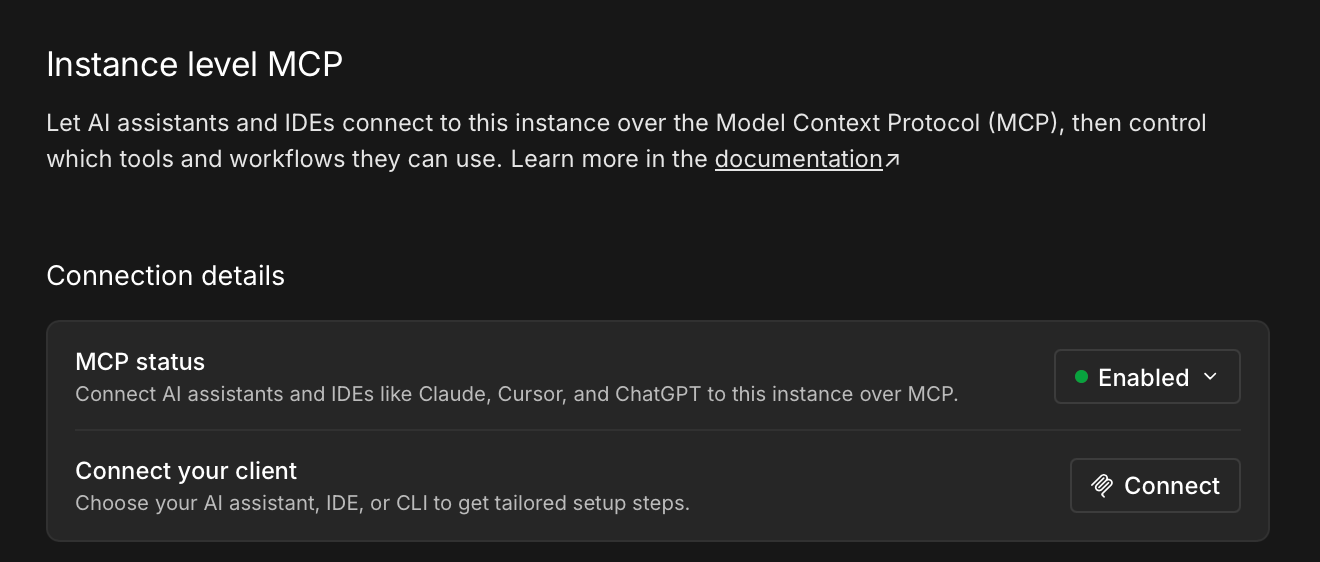
The easiest way to troubleshoot these workflows after you have imported them is to connect Claude to n8n directly by clicking “Connect” and following the instructions in n8n at Settings → Instance-level MCP.
If you would rather not build it
Everything above is free and yours to modify. The version I use in practice is a production tool I built and own called PocketPart: a hosted MCP server on dedicated infrastructure, with the USPTO and EPO tooling above plus many others, including federal case law and dockets, PTAB, trademark status, MPEP, the CFR, prior art search, and deadline calculators. Same connection process as what you configured here.
If you made it this far, I owe you a beer.
Grab one with me in Washington, DC.
Author Note
Stephen G. Nagy is a patent attorney and engineer at Strain PLLC. This article is for general informational and educational purposes only, is not legal advice, and does not create an attorney-client relationship. It reflects the author’s views, not necessarily those of Strain PLLC. Legal authorities change; verify currency before relying on anything here. For advice on your specific situation, consult qualified counsel.
This article is my own work:
Notes
1. Make sure you follow up this build by registering with NCBI, who states: “merely providing values for tool and email in requests is not sufficient to comply with this policy; these values must be registered with NCBI.” See Nat’l Ctr. for Biotechnology Info., A General Introduction to the E-utilities, https://www.ncbi.nlm.nih.gov/books/NBK25497/
2. OpenAlex, The open catalog to the global research system, https://openalex.org (last visited Aug. 28, 2026); OpenAlex is operated by OurResearch, a nonprofit.
3. PubMed, About, https://pubmed.ncbi.nlm.nih.gov/about/ (last visited Aug. 28, 2026) (“PubMed is a free resource supporting the search and retrieval of biomedical and life sciences literature”); developed and maintained by NCBI at the National Library of Medicine, NIH.
4. Google Cloud, BigQuery pricing, https://cloud.google.com/bigquery/pricing (last visited Aug. 28, 2026) (“The first 1 TiB of query data processed per month is free”; on-demand analysis billed at $6.25 per TiB thereafter). Billing must still be enabled on the project.